Activating RDS CALs and VDI licenses – step-by-step guide
Activating RDS CALs and VDI licenses
Have your order number and the email address used for the order ready. If the server role is already installed, you can start the activation right away.
The process in four steps
- Install Remote Desktop Licensing and open the license server activation wizard.
- Submit the displayed product ID in your customer account or the guest portal.
- Retrieve the License Server ID (SPK) and the License Key Pack ID (LKP).
- Enter the SPK and LKP in the wizard and check the installation.
Requirements
- Administrator access to the intended Windows license server
- a paid order with RDS CALs or VDI Suite per Device
- Access to the ProduktKeys.de customer account or the guest portal
- Internet access on the server or on a second device for the Web Browser activation method
The menu names are based on current Windows Server versions. The interface may differ in older versions. Activation is still done via the Remote Desktop Licensing Manager.
1. Install Remote Desktop Licensing
If the role is already installed, continue with section 2.
- Sign in to the server with an administrator account.
- Open Server Manager and select Manage > Add Roles and Features.
- Select Role-based or feature-based installation and then the server you want.
- Under Server Roles, select Remote Desktop Services.
- Select Remote Desktop Licensing as the role service and confirm the required features with Add Features.
- Check your selection and start the installation.
2. Activate the license server and read the product ID
- In Server Manager, open Tools > Remote Desktop Services > Remote Desktop Licensing Manager.
- Right-click the license server and select Activate Server.
- In the activation wizard, select Web Browser as the connection method.
- Continue until the license server’s product ID is displayed.
- Copy the complete product ID and leave the wizard open.
Important: The license server’s product ID is not the 25-character Windows product key. Use only the product ID that the activation wizard displays in this step.
3. Submit the product ID securely
Depending on your order, open one of the following:
Order with a customer account Enter the product ID under “Product codes” Order as a guest Open with your order number and billing email address
- Open the order concerned.
- Paste the product ID for the CAL/VDI product concerned and submit it.
- After processing, two values are provided: the License Server ID (SPK) and the License Key Pack ID (LKP).
- Copy both values completely and without changes.
If you have several license servers, you must submit the product ID of the server on which the licenses are to be installed.
4. Enter the License Server ID (SPK)
- Switch back to the open activation wizard.
- Enter the License Server ID (SPK) provided by ProduktKeys.de in the field provided.
- Confirm your entry and wait for the message that the license server has been activated successfully.
- Leave the option to start the Install Licenses Wizard selected and click Next.
5. Enter the License Key Pack ID (LKP)
If the Install Licenses Wizard does not start automatically, right-click the activated server in the Remote Desktop Licensing Manager and select Install Licenses.
- Select the Web Browser connection method again.
- Enter the complete License Key Pack ID (LKP) provided.
- Confirm your entry. As soon as the message appears that the requested licenses have been installed successfully, close the wizard with Finish.
The process with product ID, SPK and LKP applies equally to the RDS CALs and VDI Suite per Device products provided via ProduktKeys.de.


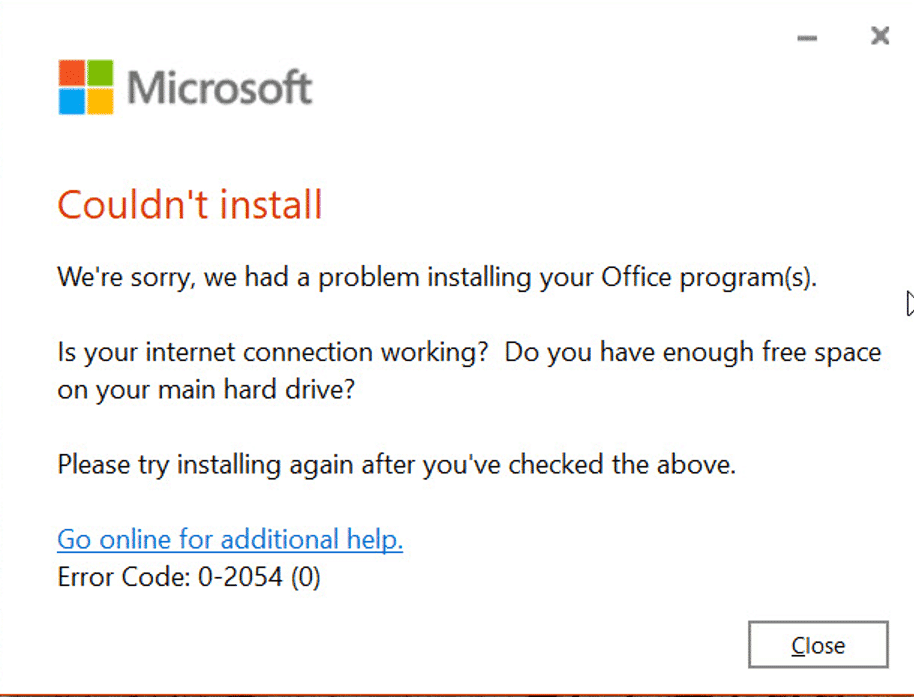
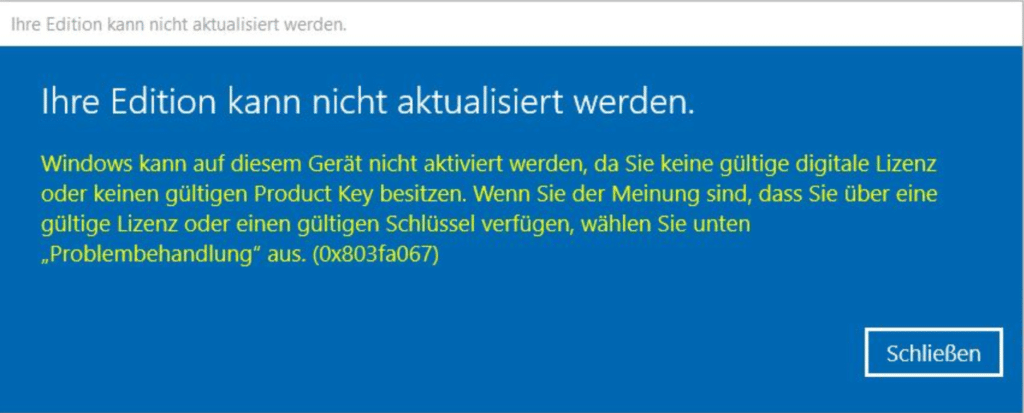 Error code: 0x803fa067