English
€ EUR
Instant download · All deliveries free
ProduktKeys.deWindows · Server · Office

Knowledge Base

01CategoryOperating systems

01Operating systems

Windows 11

Microsoft Windows 10

Microsoft Windows 7

Microsoft Windows 8.1

02Microsoft Office

Office 2024 Professional Plus

Office 2024 Standard

Office 2021 Professional Plus

Office 2021 Standard

Office 2019 Professional Plus

Office 2019 Standard

Office 2016 Professional Plus

Office 2016 Standard

Office 2013 Professional Plus

Office 2013 Standard

Office 2010 Professional Plus

Office 2010 Standard

Office 2007 Professional Plus

03Visual Studio

Visual Studio 2022 Enterprise

Visual Studio 2022 Professional

Visual Studio 2019 Enterprise

Visual Studio 2019 Professional

Visual Studio 2017 Enterprise

Visual Studio 2017 Professional

04Windows Server

05Payment matters

06PC tips & tricks

07PC games

Origin / EA app

Microsoft Store

08Adobe

09Autodesk

Activating RDS CALs and VDI licenses – step-by-step guide

Activating RDS CALs and VDI licenses

Have your order number and the email address used for the order ready. If the server role is already installed, you can start the activation right away.

The process in four steps

  1. Install Remote Desktop Licensing and open the license server activation wizard.
  2. Submit the displayed product ID in your customer account or the guest portal.
  3. Retrieve the License Server ID (SPK) and the License Key Pack ID (LKP).
  4. Enter the SPK and LKP in the wizard and check the installation.

Requirements

  • Administrator access to the intended Windows license server
  • a paid order with RDS CALs or VDI Suite per Device
  • Access to the ProduktKeys.de customer account or the guest portal
  • Internet access on the server or on a second device for the Web Browser activation method

The menu names are based on current Windows Server versions. The interface may differ in older versions. Activation is still done via the Remote Desktop Licensing Manager.

1. Install Remote Desktop Licensing

If the role is already installed, continue with section 2.

  1. Sign in to the server with an administrator account.
  2. Open Server Manager and select Manage > Add Roles and Features.
  3. Select Role-based or feature-based installation and then the server you want.
  4. Under Server Roles, select Remote Desktop Services.
  5. Select Remote Desktop Licensing as the role service and confirm the required features with Add Features.
  6. Check your selection and start the installation.

2. Activate the license server and read the product ID

  1. In Server Manager, open Tools > Remote Desktop Services > Remote Desktop Licensing Manager.
  2. Right-click the license server and select Activate Server.
  3. In the activation wizard, select Web Browser as the connection method.
  4. Continue until the license server’s product ID is displayed.
  5. Copy the complete product ID and leave the wizard open.

Important: The license server’s product ID is not the 25-character Windows product key. Use only the product ID that the activation wizard displays in this step.

3. Submit the product ID securely

Depending on your order, open one of the following:

Order with a customer account Enter the product ID under “Product codes” Order as a guest Open with your order number and billing email address

  1. Open the order concerned.
  2. Paste the product ID for the CAL/VDI product concerned and submit it.
  3. After processing, two values are provided: the License Server ID (SPK) and the License Key Pack ID (LKP).
  4. Copy both values completely and without changes.

If you have several license servers, you must submit the product ID of the server on which the licenses are to be installed.

4. Enter the License Server ID (SPK)

  1. Switch back to the open activation wizard.
  2. Enter the License Server ID (SPK) provided by ProduktKeys.de in the field provided.
  3. Confirm your entry and wait for the message that the license server has been activated successfully.
  4. Leave the option to start the Install Licenses Wizard selected and click Next.

5. Enter the License Key Pack ID (LKP)

If the Install Licenses Wizard does not start automatically, right-click the activated server in the Remote Desktop Licensing Manager and select Install Licenses.

  1. Select the Web Browser connection method again.
  2. Enter the complete License Key Pack ID (LKP) provided.
  3. Confirm your entry. As soon as the message appears that the requested licenses have been installed successfully, close the wizard with Finish.

The process with product ID, SPK and LKP applies equally to the RDS CALs and VDI Suite per Device products provided via ProduktKeys.de.
Microsoft Office Installer – user guide

User guide – Office Installer

With the Office Installer, you can quickly and easily install Microsoft Office, Project or Visio in various versions.

Preparation: completely remove existing Office versions

For the installation to work smoothly, all previously installed Office versions must be completely uninstalled. Otherwise, activation or installation errors may occur. Even when you buy a new PC, an Office 365 version is usually preinstalled.

Microsoft provides an official clean-up tool for uninstalling:

💾 Download: Download the Microsoft Fix-It tool

Start the tool, select “Remove all Office versions” and then restart your PC.

💡 Tip: Be sure to restart before you install a new Office version with the installer.

1. Download & program start

💾 Download: Download the MS Office Installer: Download

Extract the downloaded Office_Installer-x.zip with an extraction tool such as WinRar or Windows’ built-in extraction tool. Start the Office Installer by running the executable file OfficeInstaller.exe in the extracted folder. The main window opens automatically.

2. Select the product

In the upper area, select which Microsoft product you want to install:

  • Microsoft Office (Standard or Professional Plus)
  • Microsoft Project (Standard or Professional)
  • Microsoft Visio (Standard or Professional)

Then select the version you want, e.g. Office LTSC 2024 or Office 2021.

3. Set the language

In the language selection, choose the display language you want, e.g. German or English. Each language is shown with a national flag. The default language is German.

4. Choose the architecture

Choose whether you want to install Office as 64-bit or 32-bit.

  • 64-bit (recommended): for modern systems
  • 32-bit: only for older devices or add-ins
  • Auto: detects the suitable variant automatically

5. Start the installation

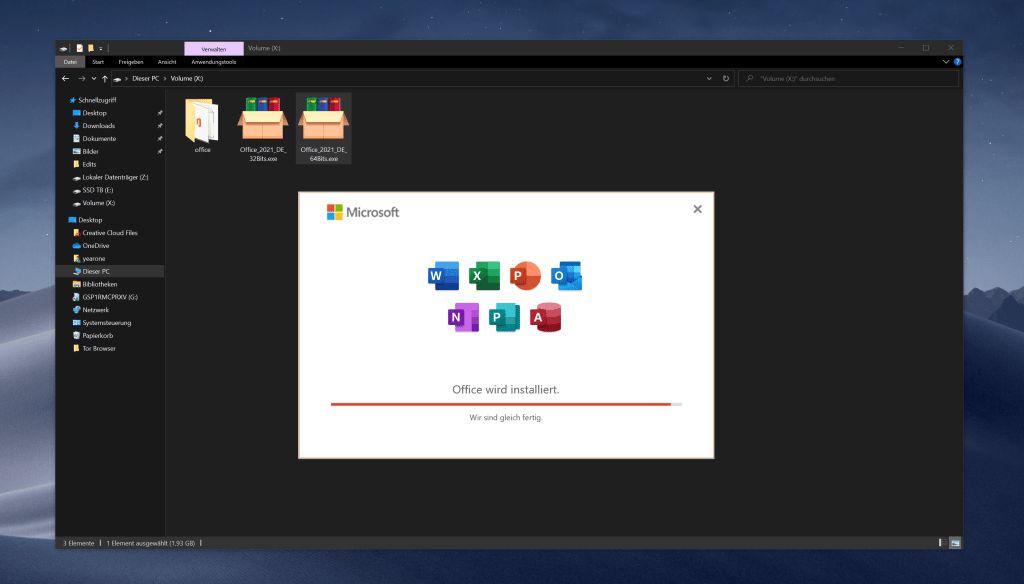
Once all options have been selected, click “Office installieren” (“Install Office”). The installer automatically downloads the selected version from Microsoft and starts the installation.

During the installation, you can see the progress and status messages in the log field at the bottom.

6. Complete the installation

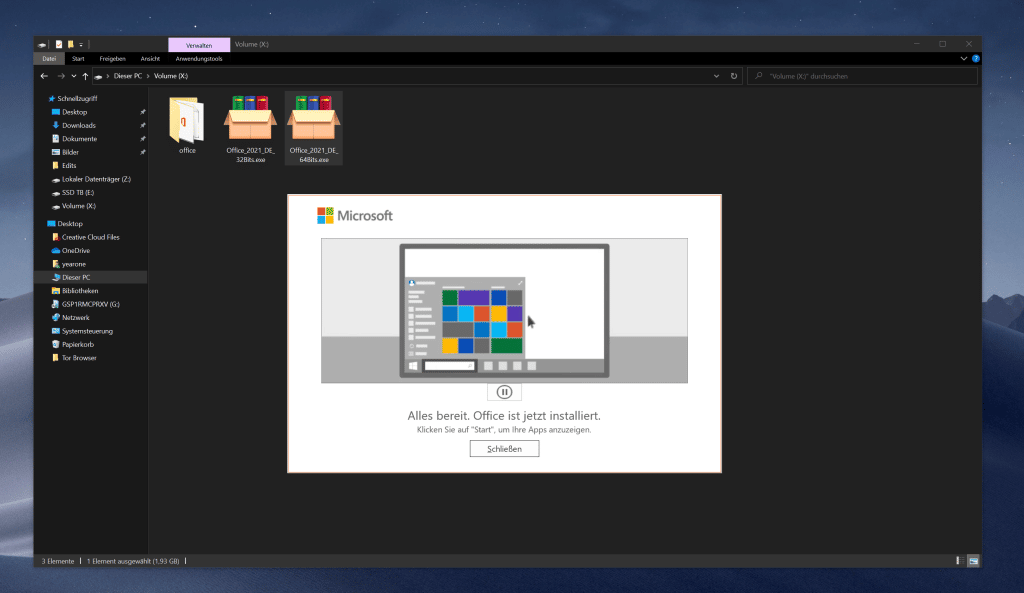
Once the installation has completed successfully, the message ExitCode: 0 appears in the log. You can now close the app and open Microsoft Office from the Start menu.

7. Tips & notes

  • Make sure that you have a stable internet connection during the installation.
  • Close all open Office programs before you start the installation.
  • Install only one Office version per device to avoid conflicts.
  • If Office does not start after the installation, run an “Online Repair” via the Control Panel.

Support

If you need help, please have the following information ready:

  • Selected product (e.g. Office LTSC 2024 ProPlus)
  • Language (e.g. de-de)
  • Architecture (x64 / x86 / Auto)
  • Installation log (last lines with ExitCode)
  • Order number

Activating your product

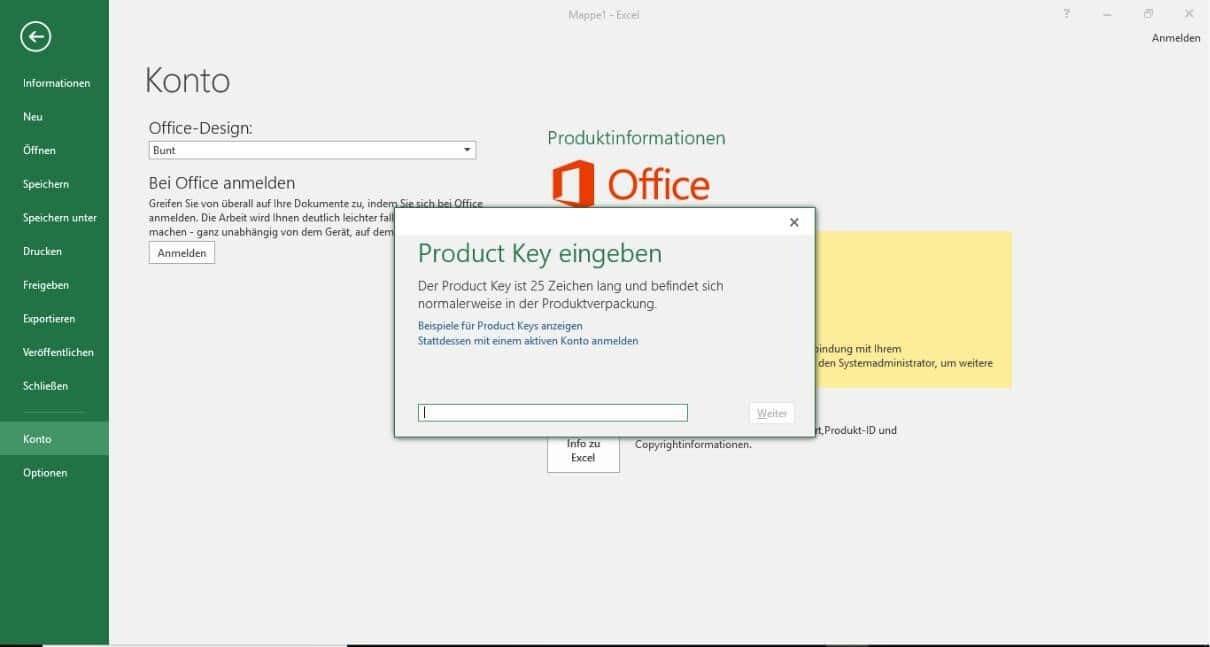
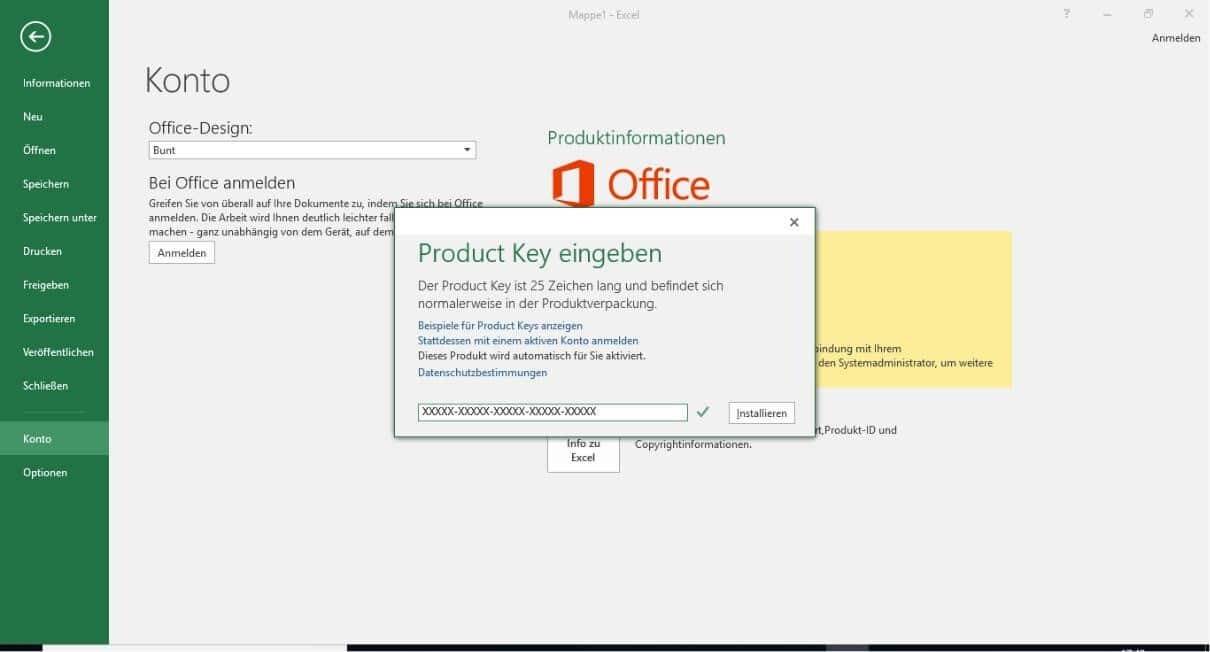
After the installation is complete, open any Office application, e.g. Word or Excel. The first time you start it, you are asked to enter your product key.

Enter the product key

If you are not asked, open Word → File → Account → Change Product Key and enter your license code there manually.

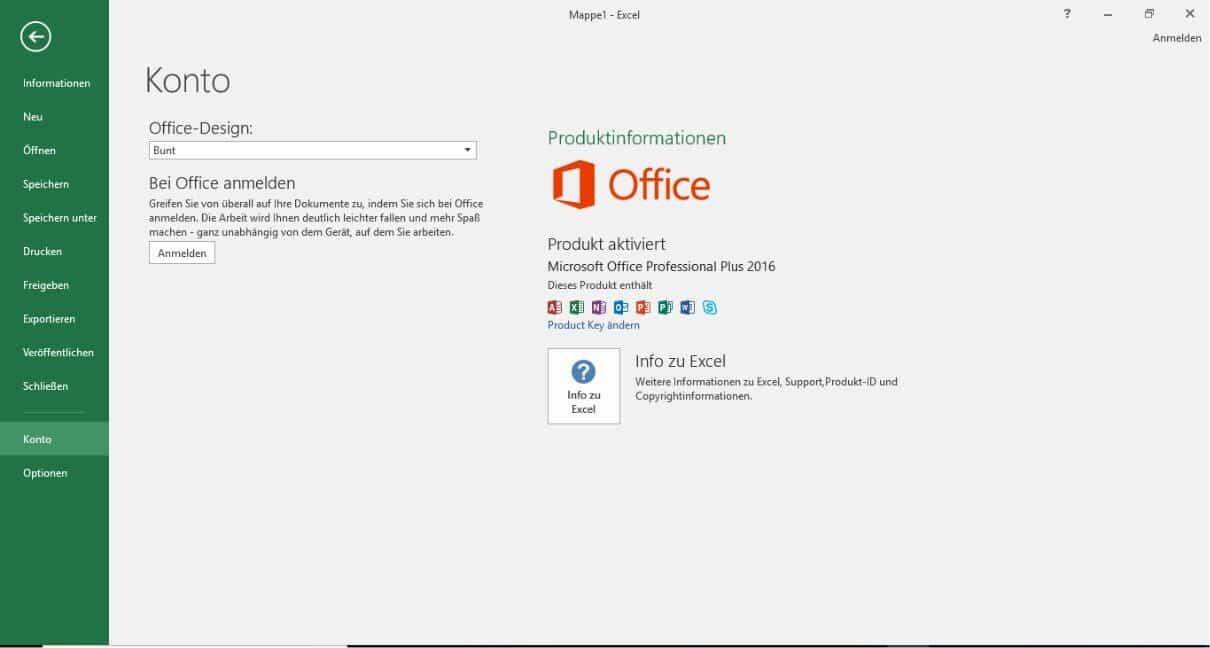
💡 Note: Without activation, your Office version automatically switches to trial mode after about 14 days. After successful activation, you can turn your antivirus program back on.

Finally, check under File → Account whether the status “Product Activated” is displayed.

Adobe Acrobat Pro DC 2019 – installation & activation guide

Adobe Acrobat Pro DC 2019 – installation & activation (Windows)

This guide describes how to install and activate Adobe Acrobat Pro DC 2019 on Windows 10/11.

Requirements

  • Windows 10 or 11 with administrator rights
  • Stable internet connection (for the online license check)
  • Valid serial number / product key
  • Sufficient permissions to install software

1. Download the installation file

  1. Download the official installation package (ISO): Download.
  2. Save the ISO file in a location that is easy to find (e.g. C:\Downloads).

2. Mount the ISO file in Windows

Windows 10/11 can mount ISO files without additional software. Choose one of the following methods:

  1. Double-click: double-click the ISO file. A new virtual DVD drive appears in File Explorer.
  2. Context menu: right-click the ISO file → Mount.
  3. PowerShell (optional): run as administrator: Mount-DiskImage -ImagePath "C:\Pfad\zur\Datei.iso"

To eject: right-click the virtual drive → Eject, or via PowerShell: Dismount-DiskImage -ImagePath "C:\Pfad\zur\Datei.iso"

3. Start the setup

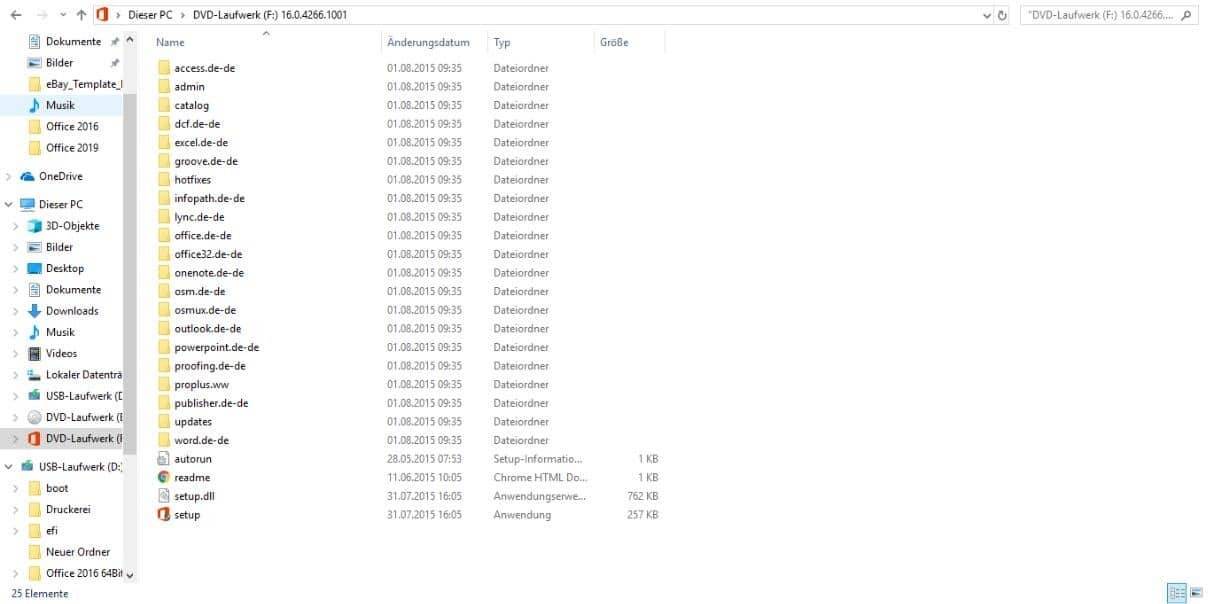
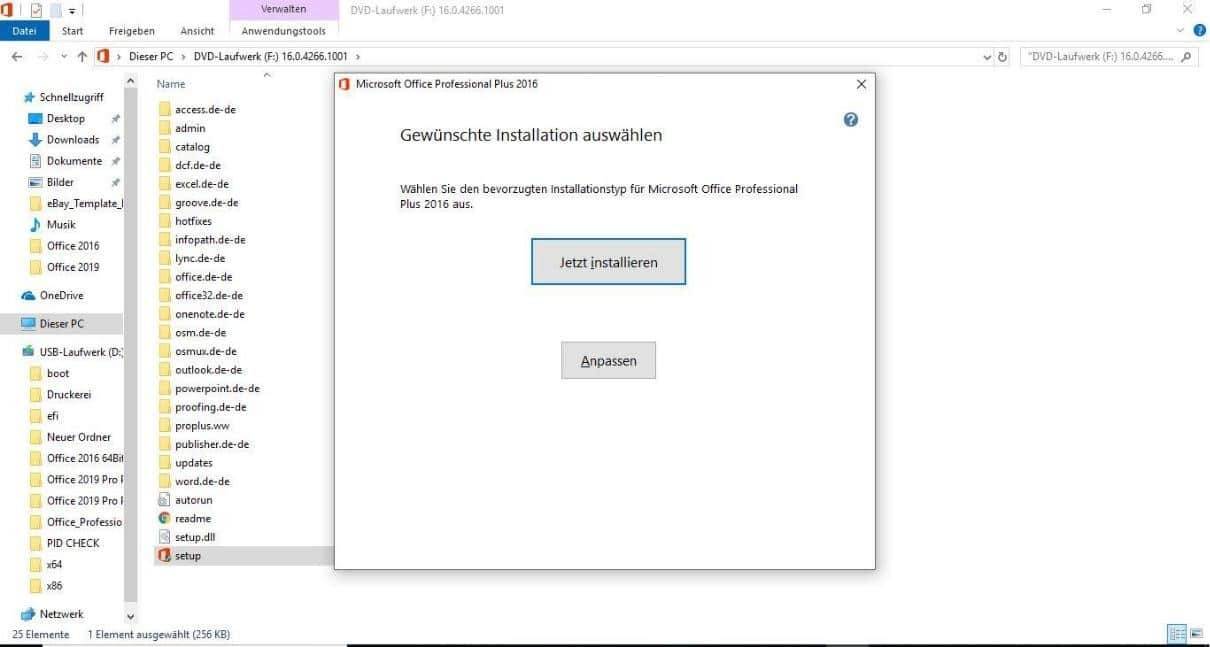
  1. Open the virtual drive in File Explorer.
  2. Double-click setup.exe to start it.
  3. Follow the instructions of the installation wizard.

4. Activation during installation

  1. Select the option I have a product key.
  2. Enter your serial number.
  3. Click Install. The installer automatically checks the serial number online via the Adobe servers.

5. Note on security software

Some antivirus solutions may wrongly block installation files. If warnings appear, temporarily add the virtual drive to the exclusion list during installation.

6. Add a Windows Defender/antivirus exclusion

  1. Open Windows Security → Virus & threat protection.
  2. Manage settings → Add or remove exclusions.
  3. Add an exclusion → select Folder and add the installation path, e.g.: C:\Programme (x86)\Adobe\Acrobat DC\

Adding the installation folder as an exclusion prevents unintended blocking and reduces error messages.

7. Quick summary

  • Download and mount the ISO
  • Start setup.exe from the virtual drive
  • Enter the product key and complete the installation
  • Add the installation folder as an antivirus/Defender exclusion

8. FAQ & troubleshooting

“Mount” is missing from the context menu

Open PowerShell as administrator and run: Mount-DiskImage -ImagePath "C:\Pfad\zur\Datei.iso"

Setup.exe does not start

Download the ISO again, start the installation as administrator, temporarily reduce your security software.

Serial number is not accepted

Check your entry (hyphens, 0/O), make sure you are connected to the internet, restart the installer.

Last updated: 10.11.2025

Visual Studio Professional 2022 installation guide

Step 1:

Open the download we sent you by email. From there you can download the “bit version” that suits your system.

Step 2:

Open “File Explorer” and go to “Downloads”. There you can start the “application”.

Step 3:

To allow changes to be made, confirm with “Yes”.

Step 4:

Now click “Continue”.

Step 5:

The download is now complete; files are being extracted and installed.

Step 6:

You can now select the components you want and then continue with “Modify”.

Step 7:

All the related packages are now being installed.

Step 8:

Now click “Continue without code”.

Step 9:

At the top left, go to “File and Account Settings”.

Step 10:

Now click “Unlock with a Product Key”.

Step 11:

Enter your product key in the empty field and then click “Apply”. Your product has been activated successfully.

Visual Studio Enterprise 2022 installation guide

Step 1:

Open the download we sent you by email. From there you can download the “bit version” that suits your system.

Step 2:

Open “File Explorer” and go to “Downloads”. There you can start the “application”.

Step 3:

To allow changes to be made, confirm with “Yes”.

Step 4:

Now click “Continue”.

Step 5:

The download is now complete; files are being extracted and installed.

Step 6:

You can now select the components you want and then continue with “Modify”.

Step 7:

All the related packages are now being installed.

Step 8:

Now click “Continue without code”.

Step 9:

At the top left, go to “File and Account Settings”.

Step 10:

Now click “Unlock with a Product Key”.

Step 11:

Enter your product key in the empty field and then click “Apply”. Your product has been activated successfully.

Visual Studio Enterprise 2017 installation guide

Step 1:

Open the download we sent you by email. From there you can download the “bit version” that suits your system.

Step 2:

Open “File Explorer” and go to “Downloads”. There you can start the “application”.

Step 3:

To allow changes to be made, confirm with “Yes”.

Step 4:

Now click “Continue”.

Step 5:

The download is now complete; files are being extracted and installed.

Step 6:

You can now select the components you want and then continue with “Modify”.

Step 7:

All the related packages are now being installed.

Step 8:

Now click “Continue without code”.

Step 9:

At the top left, go to “File and Account Settings”.

Step 10:

Now click “Unlock with a Product Key”.

Step 11:

Enter your product key in the empty field and then click “Apply”. Your product has been activated successfully.

Visual Studio Professional 2017 installation guide

Step 1:

Open the download we sent you by email. From there you can download the “bit version” that suits your system.

Step 2:

Open “File Explorer” and go to “Downloads”. There you can start the “application”.

Step 3:

To allow changes to be made, confirm with “Yes”.

Step 4:

Now click “Continue”.

Step 5:

The download is now complete; files are being extracted and installed.

Step 6:

You can now select the components you want and then continue with “Modify”.

Step 7:

All the related packages are now being installed.

Step 8:

Now click “Continue without code”.

Step 9:

At the top left, go to “File and Account Settings”.

Step 10:

Now click “Unlock with a Product Key”.

Step 11:

Enter your product key in the empty field and then click “Apply”. Your product has been activated successfully.

Visual Studio Professional 2019 installation guide

Step 1:

Open the download we sent you by email. From there you can download the “bit version” that suits your system.

Step 2:

Open “File Explorer” and go to “Downloads”. There you can start the “application”.

Step 3:

To allow changes to be made, confirm with “Yes”.

Step 4:

Now click “Continue”.

Step 5:

The download is now complete; files are being extracted and installed.

Step 6:

You can now select the components you want and then continue with “Modify”.

Step 7:

All the related packages are now being installed.

Step 8:

Now click “Continue without code”.

Step 9:

At the top left, go to “File and Account Settings”.

Step 10:

Now click “Unlock with a Product Key”.

Step 11:

Enter your product key in the empty field and then click “Apply”. Your product has been activated successfully.

Visual Studio Enterprise 2019 installation guide

Step 1:

Open the download we sent you by email. From there you can download the “bit version” that suits your system.

Step 2:

Open “File Explorer” and go to “Downloads”. There you can start the “application”.

Step 3:

To allow changes to be made, confirm with “Yes”.

Step 4:

Now click “Continue”.

Step 5:

The download is now complete; files are being extracted and installed.

Step 6:

You can now select the components you want and then continue with “Modify”.

Step 7:

All the related packages are now being installed.

Step 8:

Now click “Continue without code”.

Step 9:

At the top left, go to “File and Account Settings”.

Step 10:

Now click “Unlock with a Product Key”.

Step 11:

Enter your product key in the empty field and then click “Apply”. Your product has been activated successfully.

Minecraft Java Edition: redeem your code & install the launcher

  1. Open redeem.microsoft.com.
  2. Sign in with your Microsoft account or create a new account.
  3. Redeem your code.
  4. Install the Minecraft Launcher: minecraft.net/de-de/download.
  5. Start the launcher and sign in with the same Microsoft account.
  6. Redemption not working?
  1. Go to minecraft.net/de-de/msaprofile/redeem.
  2. Sign in using the green “Sign in with Microsoft” button – not with a Mojang account.
  3. Enter your code again.
  4. If you are asked whether you want to redeem “Java+Bedrock” or only “Java”, select “Java” only.

Activating a code in Origin / the EA app

Please note that the EA app is only available for Windows.

Activating a game with the EA app:

  1. Click here to download the EA app for Windows.
  2. Sign in to your EA account.
  3. Open your collection.
  4. Select “Redeem code”.
  5. Enter the unique code you received from us after your order and follow the activation instructions.

Activating with the Origin client:

For Windows:

  1. Sign in to the EA account with which you want to activate the game.
  2. Click the Origin menu.
  3. Select “Redeem code”.
  4. Enter the unique code you received from us after your order and follow the activation instructions.

Enabling/disabling Microsoft Recall in Windows 11 (version 24H2)

Microsoft Recall in Windows 11 (version 24H2 and later): a focus on privacy & security

With the update to Windows 11 version 24H2, Microsoft introduced a new feature called “Recall”. This AI-powered tool takes screenshots of your active windows at regular intervals and stores them locally. This creates a searchable timeline of all activities, which makes it much easier to find recently used files, websites or applications again.

Recall is reminiscent of the earlier “Timeline” feature in Windows 10, but goes one step further: thanks to artificial intelligence, the captures are not only stored but can also be searched in no time using various criteria (e.g. keyword search).

Why is Recall a risk to privacy and security?

Although Recall offers convenient access to the history of your computer activities, this comes with considerable privacy and security risks:

  • Unwanted data collection: sensitive content such as passwords, private chats or financial information can unintentionally be captured in screenshots.
  • Unauthorized access: stored screenshots are easier to view on shared devices or through access by third parties.
  • Cloud synchronization: if the screenshots are backed up online, the risk of third parties accessing them increases.
  • Attack surface for malware: cybercriminals can specifically read out Recall data to steal login credentials or other confidential information.

Checking and disabling Recall – step-by-step guide

  1. Open Terminal or PowerShell as administrator:
    Right-click the Start button and select “Terminal (Admin)” or “Windows PowerShell (Admin)”. Confirm your admin credentials if required.
  2. Check the Recall status:
    Enter the following command and press Enter:
    DISM /Online /Get-FeatureInfo /FeatureName:Recall
    If the value next to “State” is “Enabled”, the feature is turned on.
  3. Disable Recall:
    To turn the feature off, enter:
    DISM /Online /Disable-Feature /FeatureName:Recall
  4. Complete the process:
    Close the window to apply the changes.

Recall is now turned off on your system and no further screenshots will be taken.

Conclusion

The Recall feature in Windows 11 (version 24H2) can offer fast, AI-based access to your work history, but the privacy and security risks should not be underestimated. Especially if you work with sensitive data, it is advisable to disable this feature or at least check carefully whether its benefits justify the potential risks.

Office 2024 Standard installation and activation guide

1️⃣ Step: Clean up the system

Before you install Microsoft Office 2024 Standard, please make sure that all previous Office versions have been completely removed. Old installations can lead to installation or activation errors.

Microsoft provides an official removal tool for this:

👉 Download the Microsoft tool (SetupProd_OffScrub.exe)

2️⃣ Step: Use the Fix-It tool

Start the downloaded tool and select the option “Remove all Office versions” in the wizard. After the clean-up is complete, please restart your computer.

Direct link to the tool: https://outlookdiagnostics.azureedge.net/sarasetup/SetupProd_OffScrub.exe

3️⃣ Step: Download Office 2024 Standard

After cleaning up the system, you can download Microsoft Office 2024 Standard. You can find the download in your order confirmation email.

Please log in to the customer portal and click “Daten abrufen” (retrieve data).

Alternatively, the direct download is available here: 👉 Download Office 2024 Standard

Download overview: Downloads in your customer account

4️⃣ Step: Extract and start the installation

After the download, you need to extract the installation files. Use WinRAR for this.

After extracting, double-click the file Setup.bat to start the installation.

Tip: Run the file as administrator (right-click → “Run as administrator”).

5️⃣ Step: Activate your product

⚠️ IMPORTANT: If you are not asked for a product key after installation, a trial version is activated automatically, which deactivates itself after 1–2 weeks.

To activate your Office permanently, open the activation wizard → click “Online activation” → “Next” → enter the product code you received.

Alternatively: open an Office app (e.g. Word, Excel) → File → Account → Change Product Key → enter your license code there.

  • 5.1 Unless stated otherwise in the order email, activation is done via the Office activation wizard – not via setup.office.com.
  • 5.2 After installation, open an Office application (e.g. Word or Excel). The activation wizard starts automatically.
  • 5.3 If you purchased a product with activation by phone, please follow this guide:
    👉 Guide to activation by phone
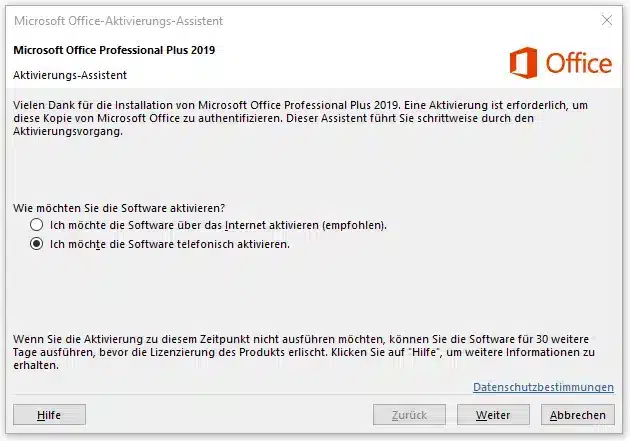
  • 5.4 If you have a regular online product key, select “I want to activate the software over the Internet” in the wizard and click “Next”.
  • 5.5 In the following window, enter your product key and complete the activation.

Info: You can also enter the product key manually at any time by opening a blank document (e.g. in Word or Excel) → File → Account → Change Product Key and pasting the code there.

💡 Note: After successful activation, the status “Product Activated” should be displayed under File → Account. Then turn your antivirus program back on and restart Office to complete the installation.

Installation and activation guide for Microsoft Office 2024 Professional Plus

⚠️ IMPORTANT: If you are not asked for the product key after installation, a trial version has been activated automatically.
It expires after about 1–2 weeks.


To activate permanently, open the activation wizard, select “Online activation” → “Next” and then enter your product key.


Alternatively: open, for example, Word or Excel, click File → Account → Change Product Key and enter the license code you received there.

1️⃣ Step: Completely remove existing Office versions

For the installation to work smoothly, all previously installed Office versions must be uninstalled.
Otherwise, activation or installation errors may occur.

Microsoft provides an official clean-up tool for this:

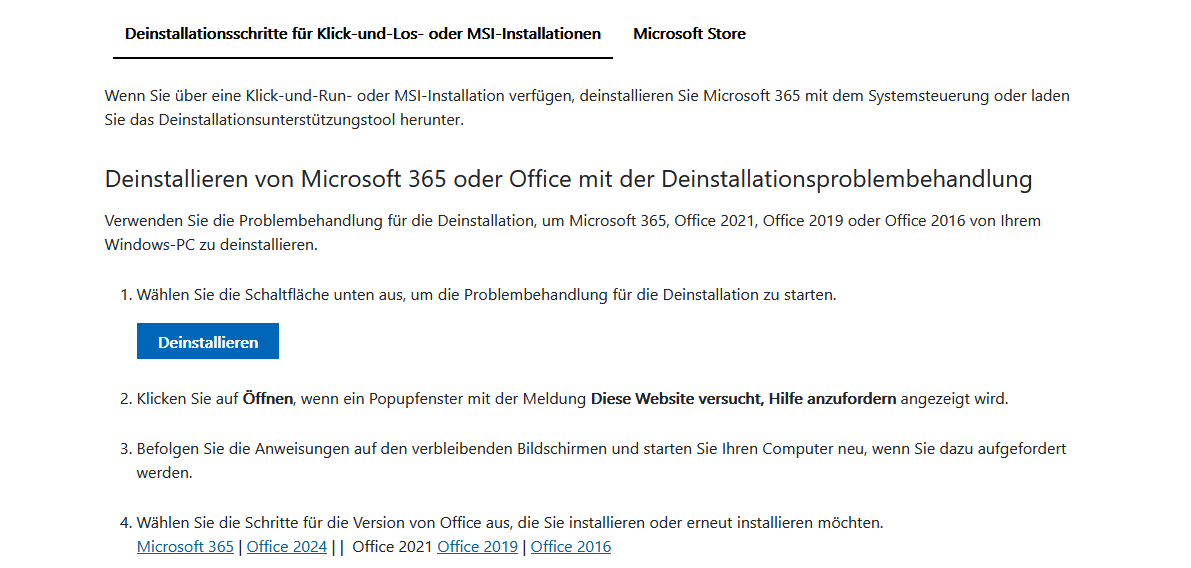
Microsoft Uninstaller for Office

  • Click the Uninstall button to start the Office uninstall tool.

2️⃣ Step: Download Microsoft Office 2024

Visit our download portal and select:

  • “Microsoft Office” → “Microsoft Office 2024 Professional Plus – Deutsch”

Click the download button there. You will be redirected to the cloud provider automatically.

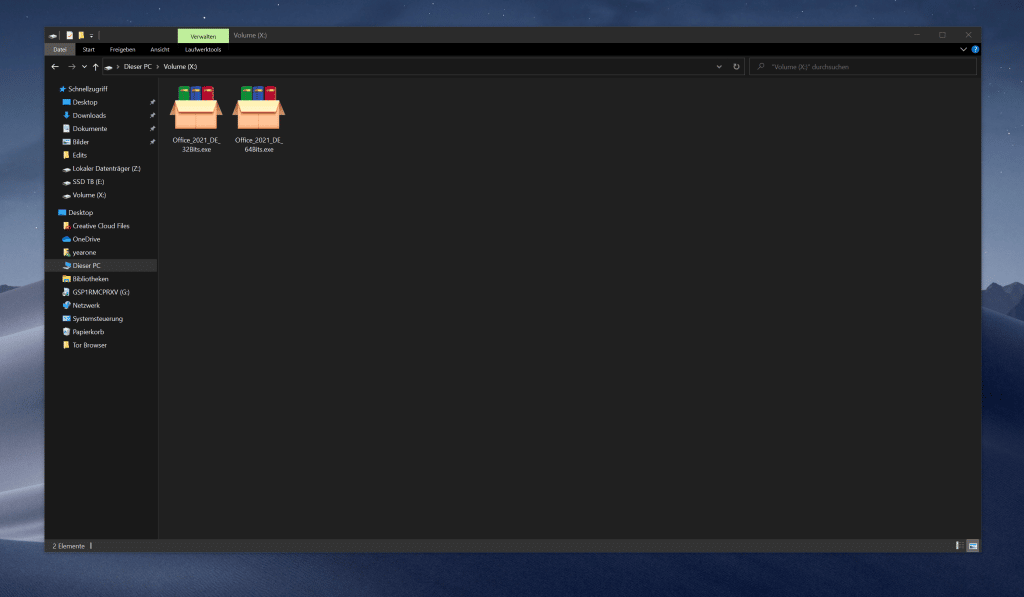
There, select the file Office_2024_DE_64Bits.exe (for 64-bit systems) or alternatively the 32-bit version and start the download.

Direct link: Downloads in your customer account

3️⃣ Step: Preparing for the installation

Temporarily disable your antivirus program to ensure a trouble-free installation.
Some security programs (e.g. Norton, Kaspersky) may wrongly block the installation file.

Then right-click the downloaded file and select “Run as administrator”.

You will usually find the file in your computer’s “Downloads” folder.

4️⃣ Step: Confirm the security prompt

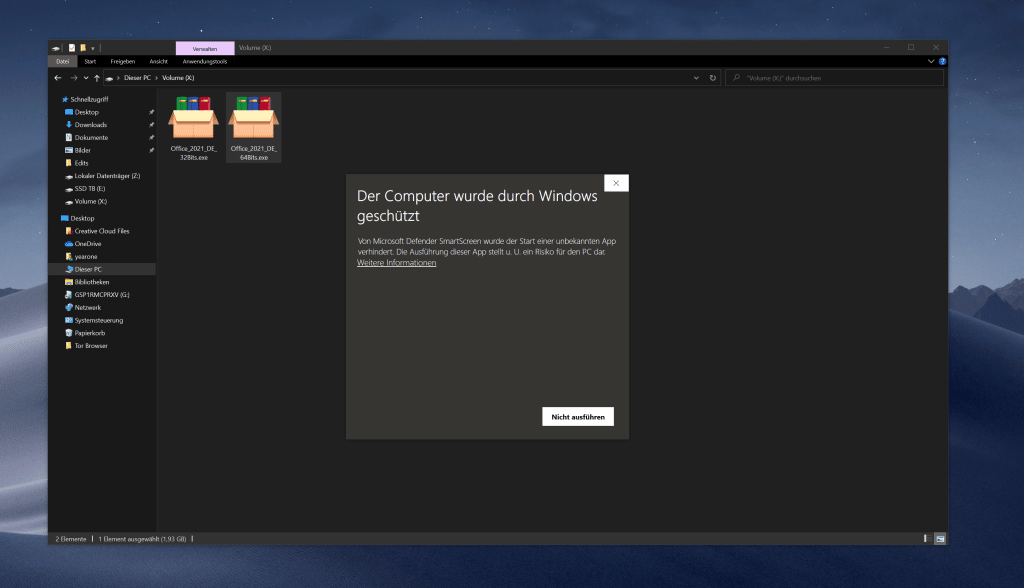
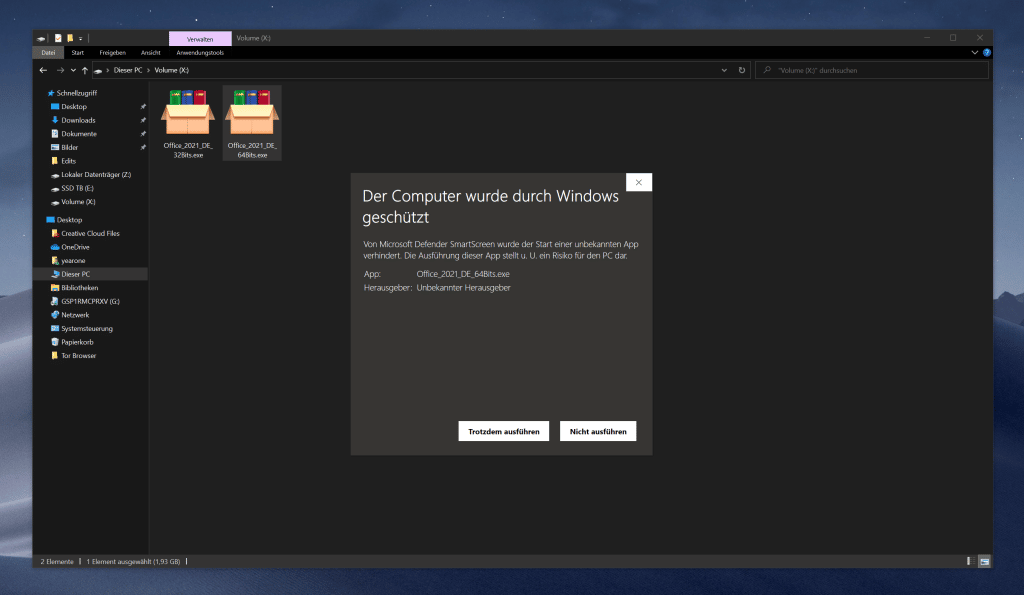
If Windows displays a security warning, confirm it with “Yes”.
This step is normal and safe.

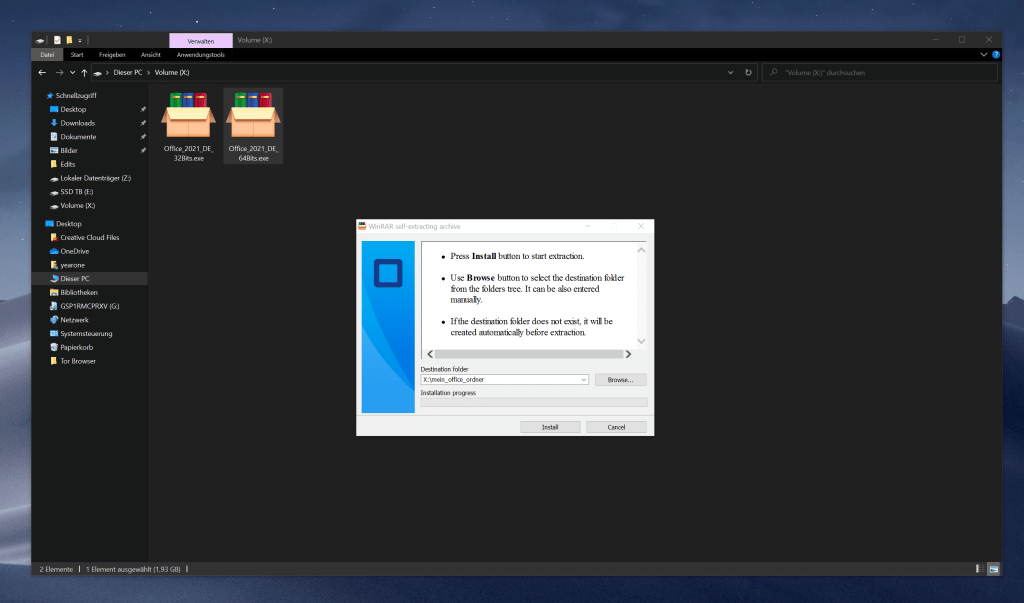
5️⃣ Step: Install Office

In the next window, click “Install”.
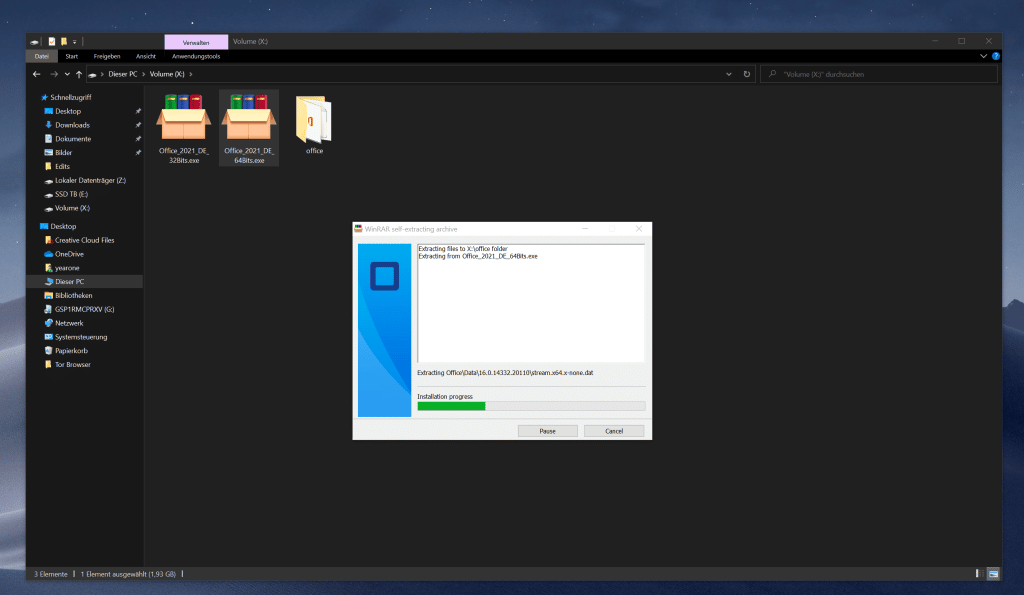
The setup automatically extracts and installs all components of Microsoft Office 2024.
Depending on your system, this process may take a few minutes – please wait until the installation is fully complete.

6️⃣ Step: Activate your product

After the installation is complete, open any application, e.g. Word or Excel.
The first time you start it, you are asked to enter the product key.

If you are not asked, open Word → File → Account → Change Product Key and enter your license code there manually.

💡 Note: Without activation, your Office version automatically switches to trial mode after about 14 days.
After successful activation, you can turn your antivirus program back on.


Finally, check under File → Account whether the status “Product Activated” is displayed.

Office 2010 Standard installation and activation guide

1. Clean up the system

Before you install Microsoft Office 2010 Standard, you first need to completely remove all old Office applications from your system with the Microsoft tool.

2. Use the Fix-It tool

Microsoft tool: https://outlookdiagnostics.azureedge.net/sarasetup/SetupProd_OffScrub.exe

3. Download

Next, you need to download Office 2010 Standard. You can find the download in your order email. Please log in to the portal at the bottom of the order email and go to “Daten abrufen” (retrieve data). Click here to go to the download.

4. Extract

Once the download is complete, extract Office 2010 Standard with WinRar. Then run the SETUP.exe file to start the installation.

5. Activation

IMPORTANT: If you are not asked for a product code after installation, a trial version is activated, which deactivates itself after 1–2 weeks! To activate your Office, click Online activation -> Next -> in the activation wizard and enter the product code you received. Alternatively, you can create a blank document in e.g. Word, Excel, etc. and enter your product code in the menu under File -> Account -> Change Product Key.

  • 5.1 Unless stated otherwise in the order email, activation is done via the Office activation wizard and NOT VIA setup.office.com)
  • 5.2 After installation, open an Office application such as Word, Excel… The Office activation wizard will open.
  • 5.3 IMPORTANT: If you purchased a product with activation by phone, please continue with the following guide: Activation by phone – Microsoft Office
  • 5.4 If you purchased a regular product code (i.e. not a code for activation by phone), select “I want to activate the software over the Internet” and click “Next”.
  • 5.5 In the following window, enter the product code you purchased and complete the activation of your product.

Office 2013 Standard installation and activation guide

1. Clean up the system

Before you install Microsoft Office 2013 Standard, you first need to completely remove all old Office applications from your system with the Microsoft tool.

2. Use the Fix-It tool

Microsoft tool: https://outlookdiagnostics.azureedge.net/sarasetup/SetupProd_OffScrub.exe

3. Download

Next, you need to download Office 2013 Standard. You can find the download in your order email. Please log in to the portal at the bottom of the order email and go to “Daten abrufen” (retrieve data). Click here to go to the download.

4. Extract

Once the download is complete, extract Office 2013 Standard with WinRar. Then run the SETUP.exe file to start the installation.

5. Activation

IMPORTANT: If you are not asked for a product code after installation, a trial version is activated, which deactivates itself after 1–2 weeks! To activate your Office, click Online activation -> Next -> in the activation wizard and enter the product code you received. Alternatively, you can create a blank document in e.g. Word, Excel, etc. and enter your product code in the menu under File -> Account -> Change Product Key.

  • 5.1 Unless stated otherwise in the order email, activation is done via the Office activation wizard and NOT VIA setup.office.com)
  • 5.2 After installation, open an Office application such as Word, Excel… The Office activation wizard will open.
  • 5.3 IMPORTANT: If you purchased a product with activation by phone, please continue with the following guide: Activation by phone – Microsoft Office
  • 5.4 If you purchased a regular product code (i.e. not a code for activation by phone), select “I want to activate the software over the Internet” and click “Next”.
  • 5.5 In the following window, enter the product code you purchased and complete the activation of your product.

Office 2016 Standard installation and activation guide

1. Clean up the system

Before you install Microsoft Office 2016 Standard, you first need to completely remove all old Office applications from your system with the Microsoft tool.

2. Use the Fix-It tool

Microsoft tool: https://outlookdiagnostics.azureedge.net/sarasetup/SetupProd_OffScrub.exe

3. Download

Next, you need to download Office 2016 Standard. You can find the download in your order email. Please log in to the portal at the bottom of the order email and go to “Daten abrufen” (retrieve data). Click here to go to the download.

4. Extract

Once the download is complete, extract Office 2016 Standard with WinRar. Then run the SETUP.exe file to start the installation.

5. Activation

IMPORTANT: If you are not asked for a product code after installation, a trial version is activated, which deactivates itself after 1–2 weeks! To activate your Office, click Online activation -> Next -> in the activation wizard and enter the product code you received. Alternatively, you can create a blank document in e.g. Word, Excel, etc. and enter your product code in the menu under File -> Account -> Change Product Key.

  • 5.1 Unless stated otherwise in the order email, activation is done via the Office activation wizard and NOT VIA setup.office.com)
  • 5.2 After installation, open an Office application such as Word, Excel… The Office activation wizard will open.
  • 5.3 IMPORTANT: If you purchased a product with activation by phone, please continue with the following guide: Activation by phone – Microsoft Office
  • 5.4 If you purchased a regular product code (i.e. not a code for activation by phone), select “I want to activate the software over the Internet” and click “Next”.
  • 5.5 In the following window, enter the product code you purchased and complete the activation of your product.

Office 2019 Standard installation and activation guide

1. Clean up the system

Before you install Microsoft Office 2019 Standard, you first need to completely remove all old Office applications from your system with the Microsoft tool.

2. Use the Fix-It tool

Microsoft tool: https://outlookdiagnostics.azureedge.net/sarasetup/SetupProd_OffScrub.exe

3. Download

Next, you need to download Office 2019 Standard. You can find the download in your order email. Please log in to the portal at the bottom of the order email and go to “Daten abrufen” (retrieve data). Click here to go to the download.

4. Extract

Once the download is complete, extract Office 2019 Standard with WinRar. Then run the START.cmd file to start the installation.

5. Activation

IMPORTANT: If you are not asked for a product code after installation, a trial version is activated, which deactivates itself after 1–2 weeks! To activate your Office, click Online activation -> Next -> in the activation wizard and enter the product code you received. Alternatively, you can create a blank document in e.g. Word, Excel, etc. and enter your product code in the menu under File -> Account -> Change Product Key.

  • 5.1 Unless stated otherwise in the order email, activation is done via the Office activation wizard and NOT VIA setup.office.com)
  • 5.2 After installation, open an Office application such as Word, Excel… The Office activation wizard will open.
  • 5.3 IMPORTANT: If you purchased a product with activation by phone, please continue with the following guide: Activation by phone – Microsoft Office
  • 5.4 If you purchased a regular product code (i.e. not a code for activation by phone), select “I want to activate the software over the Internet” and click “Next”.
  • 5.5 In the following window, enter the product code you purchased and complete the activation of your product.

INFO: Alternatively, you can also enter your product code and activate Office by creating a blank document in e.g. Word, Excel, etc. and entering and activating your product code in the menu under File -> Account and then “Change Product Key”.

Office 2021 Standard installation and activation guide

1. Clean up the system

Before you install Microsoft Office 2021 Standard, you first need to completely remove all old Office applications from your system with the Microsoft tool.

2. Use the Fix-It tool

Microsoft tool: https://outlookdiagnostics.azureedge.net/sarasetup/SetupProd_OffScrub.exe

3. Download

Next, you need to download Office 2021 Standard. You can find the download in your order email. Please log in to the portal at the bottom of the order email and go to “Daten abrufen” (retrieve data). Click here to go to the download.

4. Extract

Once the download is complete, extract Office 2021 Standard with WinRar. Then run the START.cmd file to start the installation.

5. Activation

IMPORTANT: If you are not asked for a product code after installation, a trial version is activated, which deactivates itself after 1–2 weeks! To activate your Office, click Online activation -> Next -> in the activation wizard and enter the product code you received. Alternatively, you can create a blank document in e.g. Word, Excel, etc. and enter your product code in the menu under File -> Account -> Change Product Key.

  • 5.1 Unless stated otherwise in the order email, activation is done via the Office activation wizard and NOT VIA setup.office.com)
  • 5.2 After installation, open an Office application such as Word, Excel… The Office activation wizard will open.
  • 5.3 IMPORTANT: If you purchased a product with activation by phone, please continue with the following guide: Activation by phone – Microsoft Office
  • 5.4 If you purchased a regular product code (i.e. not a code for activation by phone), select “I want to activate the software over the Internet” and click “Next”.
  • 5.5 In the following window, enter the product code you purchased and complete the activation of your product.

INFO: Alternatively, you can also enter your product code and activate Office by creating a blank document in e.g. Word, Excel, etc. and entering and activating your product code in the menu under File -> Account and then “Change Product Key”.

Activating RDS User/Device CALs

Guide to activating RDS User/Device CALs

This guide applies to Windows Server 2016, 2019 and 2022.

The Remote Desktop Services license server issues client access licenses (CALs) to users and devices when they access the RD Session Host. You can activate the license server with the Remote Desktop Licensing Manager.

Installing the “Remote Desktop Licensing” role

  1. Sign in with an administrator account to the server you want to use as the license server.
  2. In Server Manager, click Roles Summary and then Add Roles. On the first page of the Add Roles Wizard, click Next.
  3. Select Remote Desktop Services, then click Next, and on the Remote Desktop Services page click Next as well.
  4. Select Remote Desktop Licensing and then click Next.
  5. Configure the domain: select Configure a discovery scope for this license server, click This domain and then Next.
  6. Click Install.

Activating the license server

  1. Open the Remote Desktop Licensing Manager: click Start > Administrative Tools > Remote Desktop Services > Remote Desktop Licensing Manager.
  2. Right-click the license server and then click Activate Server.
  3. On the welcome page, click Next.
  4. For the connection method, select Automatic connection (recommended) and then click Next.
  5. Enter the company information (your name, the company name, your geographic region) and then click Next.
  6. Optionally, enter additional company information (such as email address and company address) and then click Next.
  7. Make sure that Start Install Licenses Wizard now is not selected. (We will install the licenses later.) Then click Next.

The license server can now be used to issue and manage licenses.

New Windows feature: update all installed programs from the console in Windows 10/11 (winget)

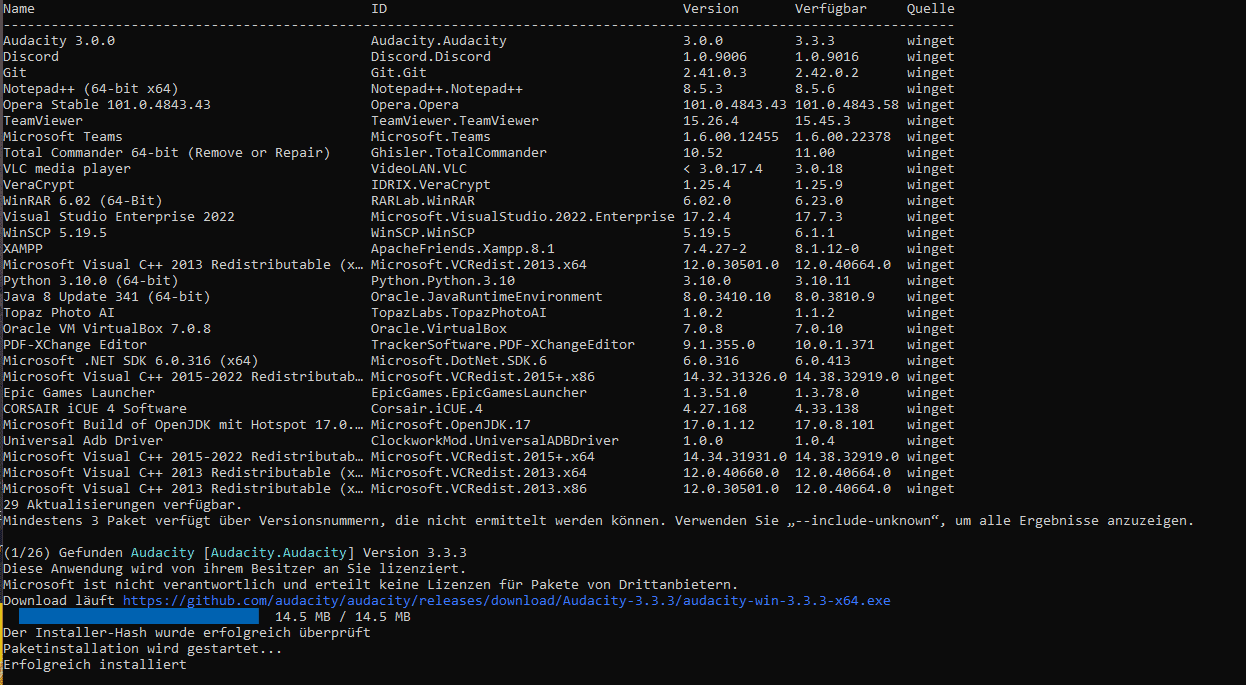
Winget is a package manager for Windows that lets users install, update and manage software from the command line. It was developed by Microsoft and is part of the Windows Package Manager. With winget, users can display a list of available packages, install specific software packages, update software that is already installed and perform many other actions, all with simple command-line commands. In terms of functionality it is similar to other package managers such as APT for Debian-based systems or YUM for Red Hat-based systems, but it is optimized specifically for Windows.

NVIDIA Share XcQdZAyK66

To update all installed programs on your Windows 10 or Windows 11, simply enter the following command:

Winget upgrade --all

An overview of the commands:

CommandDescriptionSyntax
installInstalls a package.winget install <package name>
showShows information about a specific package.winget show <package name>
sourceManages the software sources for winget.Subcommands: update, list, add, remove
searchSearches for packages.winget search <search term>
listLists all installed packages.winget list
upgradeUpdates one or all installed packages.winget upgrade [<package name>]
uninstallUninstalls a package.winget uninstall <package name>
validateChecks a package’s manifest file for validity.winget validate <path to manifest>
hashGenerates a hash value for an installer file.winget hash <path to file>
settingsOpens the winget settings file in a default editor.winget settings
featuresShows experimental features available in winget.winget features
exportWrites a list of all installed packages to a file.winget export -o <file name>
importInstalls packages based on a previously created export file.winget import -i <file name>

More information and further commands: https://learn.microsoft.com/de-de/windows/package-manager/winget/

Windows Server 2022 feature comparison

Windows Server 2022 feature comparison: Standard & Datacenter

Generally available features

“Generally available features”

Generally available featuresWindows Server 2022 StandardWindows Server 2022 DatacenterWindows Server 2022 Datacenter: Azure Edition
Azure Extended NetworkingNoNoYes
Best Practices AnalyzerYesYesYes
ContainerYesYesYes
Direct AccessYesYesYes
Dynamic Memory (in virtualization)YesYesYes
Hot add/replace RAMYesYesYes
HotpatchingNoNoYes
Microsoft Management ConsoleYesYesYes
Minimal Server InterfaceYesYesYes
Network Load BalancingYesYesYes
Windows PowerShellYesYesYes
Server Core installation optionYesYesYes
Server ManagerYesYesYes
SMB Direct and SMB over RDMAYesYesYes (not supported in Azure)
SMB compressionYesYesYes
SMB over QUICNoNoYes
Software-defined networkingNoYesYes
Storage Migration ServiceYesYesYes
Storage ReplicaYes (1 partnership and 1 resource group with a single 2 TB volume)Yes, unlimitedYes, unlimited
Storage Replica compressionNoNoYes
Storage SpacesYesYesYes
Storage Spaces DirectNoYesYes
Volume Activation ServicesYesYesYes
Volume Shadow Copy Service (VSS) integrationYesYesYes
Windows Server Update ServicesYesYesYes
Server license loggingYesYesYes
Inherited activationAs a guest (when hosted on Datacenter)Can be a host or a guestCan be a host or a guest
Work FoldersYesYesYes

“Version differences”

Generally available featuresWindows Server 2022 StandardWindows Server 2022 DatacenterWindows Server 2022 Datacenter: Azure Edition
Azure Extended NetworkingNoNoYes
HotpatchingNoNoYes
SMB over QUICNoNoYes
Software-defined networkingNoYesYes
Storage ReplicaYes (1 partnership and 1 resource group with a single 2 TB volume)Yes, unlimitedYes, unlimited
Storage Spaces DirectNoYesYes
Inherited activationAs a guest (when hosted on Datacenter)Can be a host or a guestCan be a host or a guest

Locks and limits

“Full comparison”

Locks and limitsWindows Server 2022 StandardWindows Server 2022 Datacenter
Maximum number of usersBased on client access licensesBased on client access licenses
Maximum number of SMB connections16,777,21616,777,216
Maximum number of RRAS connectionsUnlimitedUnlimited
Maximum number of IAS connections2,147,483,6472,147,483,647
Maximum number of RDS connections65,53565,535
Maximum number of 64-bit sockets6464
Maximum number of coresUnlimitedUnlimited
Maximum RAM48 TB48 TB
Can be used as a virtualization guestYes. 2 virtual machines plus one Hyper-V host per licenseYes. Unlimited number of virtual machines plus one Hyper-V host per license
Windows Server containersUnlimitedUnlimited
Virtual OSE/Hyper-V isolated containers2Unlimited
Server can join a domain.YesYes
Perimeter network protection/firewallNoNo
DirectAccessYesYes
DLNA codecs and web media streamingYes, when installed as Server with Desktop ExperienceYes, when installed as Server with Desktop Experience

“Version differences”

Locks and limitsWindows Server 2022 StandardWindows Server 2022 Datacenter
Can be used as a virtualization guestYes. 2 virtual machines plus one Hyper-V host per licenseYes. Unlimited number of virtual machines plus one Hyper-V host per license

Server roles

“Full comparison”

Available Windows Server rolesRole servicesWindows Server 2022 StandardWindows Server 2022 Datacenter
Active Directory Certificate Services YesYes
Active Directory Domain Services (AD DS) YesYes
Active Directory Federation Services YesYes
Active Directory Lightweight Directory Services YesYes
Active Directory Rights Management Services YesYes
Device Health Attestation YesYes
DHCP Server YesYes
DNS Server YesYes
Fax Server YesYes
File and Storage ServicesFile ServerYesYes
File and Storage ServicesBranchCache for Network FilesYesYes
File and Storage ServicesData DeduplicationYesYes
File and Storage ServicesDFS NamespacesYesYes
File and Storage ServicesDFS ReplicationYesYes
File and Storage ServicesFile Server Resource ManagerYesYes
File and Storage ServicesFile Server VSS Agent ServiceYesYes
File and Storage ServicesiSCSI Target ServerYesYes
File and Storage ServicesiSCSI Target Storage ProviderYesYes
File and Storage ServicesServer for NFSYesYes
File and Storage ServicesWork FoldersYesYes
File and Storage ServicesStorage ServicesYesYes
Host Guardian Service YesYes
Hyper-V YesYes; including shielded virtual machines
Network Controller NoYes
Network Policy and Access Services Yes, when installed as Server with Desktop ExperienceYes, when installed as Server with Desktop Experience
Print and Document Services YesYes
Remote Access YesYes
Remote Desktop Services YesYes
Volume Activation Services YesYes
Web Server (IIS) YesYes
Windows Deployment Services YesYes
Windows Server Update Services YesYes

“Version differences”

Available Windows Server rolesRole servicesWindows Server 2022 StandardWindows Server 2022 Datacenter
Network Controller NoYes

Features

“Full comparison”

Windows Server features availableWindows Server 2022 StandardWindows Server 2022 Datacenter
.NET Framework 3.5YesYes
.NET Framework 4.8YesYes
Background Intelligent Transfer Service (BITS)YesYes
BitLocker Drive EncryptionYesYes
BitLocker Network UnlockYes, when installed as Server with Desktop ExperienceYes, when installed as Server with Desktop Experience
BranchCacheYesYes
Client for NFSYesYes
ContainerYesYes
Data Center BridgingYesYes
DirectPlayYes, when installed as Server with Desktop ExperienceYes, when installed as Server with Desktop Experience
Enhanced StorageYesYes
Failover ClusteringYesYes
Group Policy ManagementYesYes
Host Guardian Hyper-V SupportNoYes
I/O Quality of Service (QoS)YesYes
IIS Hostable Web CoreYesYes
Internet Printing ClientYes, when installed as Server with Desktop ExperienceYes, when installed as Server with Desktop Experience
IP Address Management (IPAM) ServerYesYes
LPR Port MonitorYes, when installed as Server with Desktop ExperienceYes, when installed as Server with Desktop Experience
Management OData IIS ExtensionYesYes
Media FoundationYesYes
Message QueuingYesYes
Microsoft Defender AntivirusYesYes
Multipath I/OYesYes
MultiPoint ConnectorYesYes
Network Load BalancingYesYes
Network virtualizationYesYes
Peer Name Resolution ProtocolYesYes
Quality Windows Audio Video ExperienceYesYes
RAS Connection Manager Administration Kit (CMAK)Yes, when installed as Server with Desktop ExperienceYes, when installed as Server with Desktop Experience
Remote AssistanceYes, when installed as Server with Desktop ExperienceYes, when installed as Server with Desktop Experience
Remote Differential CompressionYesYes
Remote Server Administration Tools (RSAT)YesYes
RPC over HTTP ProxyYesYes
Setup and Boot Event CollectionYesYes
Simple TCP/IP ServicesYes, when installed as Server with Desktop ExperienceYes, when installed as Server with Desktop Experience
SMB 1.0/CIFS File Sharing SupportYesYes
SMB Bandwidth LimitYesYes
SMTP ServerYesYes
SNMP ServiceYesYes
Software Load BalancerYesYes
Storage Migration ServiceYesYes
Storage Migration Service ProxyYesYes
Storage ReplicaYesYes
System Data ArchiverYesYes
System DataYesYes
Telnet ClientYesYes
TFTP ClientYes, when installed as Server with Desktop ExperienceYes, when installed as Server with Desktop Experience
VM Shielding Tools for Fabric ManagementYesYes
WebDAV RedirectorYesYes
Windows Biometric FrameworkYes, when installed as Server with Desktop ExperienceYes, when installed as Server with Desktop Experience
Windows Identity Foundation 3.5Yes, when installed as Server with Desktop ExperienceYes, when installed as Server with Desktop Experience
Windows Internal DatabaseYesYes
Windows PowerShellYesYes
Windows Process Activation ServiceYesYes
Windows Search ServiceYes, when installed as Server with Desktop ExperienceYes, when installed as Server with Desktop Experience
Windows Server BackupYesYes
Windows Server Migration ToolsYesYes
Windows Standards-Based Storage ManagementYesYes
Windows Subsystem for LinuxYesYes
Windows TIFF IFilterYes, when installed as Server with Desktop ExperienceYes, when installed as Server with Desktop Experience
WinRM IIS ExtensionYesYes
WINS ServerYesYes
Wireless LAN ServiceYesYes
WoW64 supportYesYes
XPS ViewerYes, installed with Server with Desktop ExperienceYes, installed with Server with Desktop Experience

“Version differences”

Windows Server features availableWindows Server 2022 StandardWindows Server 2022 Datacenter
Host Guardian Hyper-V SupportNoYes

Windows Server 2019 feature comparison

Windows Server 2019 feature comparison: Standard & Datacenter

Generally available features

“Generally available features”

Generally available featuresWindows Server 2019 StandardWindows Server 2019 Datacenter
Best Practices AnalyzerYesYes
Direct AccessYesYes
Dynamic Memory (in virtualization)YesYes
Hot add/replace RAMYesYes
Microsoft Management ConsoleYesYes
Minimal Server InterfaceYesYes
Network Load BalancingYesYes
Windows PowerShellYesYes
Server Core installation optionYesYes
Server ManagerYesYes
SMB Direct and SMB over RDMAYesYes
Software-defined networkingNoYes
Storage Migration ServiceYesYes
Storage ReplicaYes (1 partnership and 1 resource group with a single 2 TB volume)Yes, unlimited
Storage SpacesYesYes
Storage Spaces DirectNoYes
Volume Activation ServicesYesYes
Volume Shadow Copy Service (VSS) integrationYesYes
Windows Server Update ServicesYesYes
Server license loggingYesYes
Inherited activationAs a guest (when hosted on Datacenter)Can be a host or a guest
Work FoldersYesYes

“Version differences”

Generally available featuresWindows Server 2019 StandardWindows Server 2019 Datacenter
Software-defined networkingNoYes
Storage ReplicaYes (1 partnership and 1 resource group with a single 2 TB volume)Yes, unlimited
Storage Spaces DirectNoYes
Inherited activationAs a guest (when hosted on Datacenter)Can be a host or a guest

Locks and limits

“Full comparison”

Locks and limitsWindows Server 2019 StandardWindows Server 2019 Datacenter
Maximum number of usersBased on client access licensesBased on client access licenses
Maximum number of SMB connections16,777,21616,777,216
Maximum number of RRAS connectionsunlimitedunlimited
Maximum number of IAS connections2,147,483,6472,147,483,647
Maximum number of RDS connections65,53565,535
Maximum number of 64-bit sockets6464
Maximum number of coresunlimitedunlimited
Maximum RAM24 TB24 TB
Can be used as a virtualization guestYes. 2 virtual machines plus one Hyper-V host per licenseYes. Unlimited number of virtual machines plus one Hyper-V host per license
Server can join a domain.yesyes
Perimeter network protection/firewallnono
DirectAccessyesyes
DLNA codecs and web media streamingYes, when installed as Server with Desktop ExperienceYes, when installed as Server with Desktop Experience

“Version differences”

Locks and limitsWindows Server 2019 StandardWindows Server 2019 Datacenter
Can be used as a virtualization guestYes. 2 virtual machines plus one Hyper-V host per licenseYes. Unlimited number of virtual machines plus one Hyper-V host per license

Server roles

“Full comparison”

Available Windows Server rolesRole servicesWindows Server 2019 StandardWindows Server 2019 Datacenter
Active Directory Certificate Services YesYes
Active Directory Domain Services (AD DS) YesYes
Active Directory Federation Services YesYes
Active Directory Lightweight Directory Services YesYes
Active Directory Rights Management Services YesYes
Device Health Attestation YesYes
DHCP Server YesYes
DNS Server YesYes
Fax Server YesYes
File and Storage ServicesFile ServerYesYes
File and Storage ServicesBranchCache for Network FilesYesYes
File and Storage ServicesData DeduplicationYesYes
File and Storage ServicesDFS NamespacesYesYes
File and Storage ServicesDFS ReplicationYesYes
File and Storage ServicesFile Server Resource ManagerYesYes
File and Storage ServicesFile Server VSS Agent ServiceYesYes
File and Storage ServicesiSCSI Target ServerYesYes
File and Storage ServicesiSCSI Target Storage ProviderYesYes
File and Storage ServicesServer for NFSYesYes
File and Storage ServicesWork FoldersYesYes
File and Storage ServicesStorage ServicesYesYes
Host Guardian Service YesYes
Hyper-V YesYes; including shielded virtual machines
Network Controller NoYes
Network Policy and Access Services Yes, when installed as Server with Desktop ExperienceYes, when installed as Server with Desktop Experience
Print and Document Services YesYes
Remote Access YesYes
Remote Desktop Services YesYes
Volume Activation Services YesYes
Web Server (IIS) YesYes
Windows Deployment Services Yes*Yes*
Windows Server Update Services YesYes

Version differences”

Available Windows Server rolesRole servicesWindows Server 2019 StandardWindows Server 2019 Datacenter
Network Controller NoYes

Features

“Full comparison”

Windows Server features availableWindows Server 2019 StandardWindows Server 2019 Datacenter
.NET Framework 3.5YesYes
.NET Framework 4.7YesYes
Background Intelligent Transfer Service (BITS)YesYes
BitLocker Drive EncryptionYesYes
BitLocker Network UnlockYes, when installed as Server with Desktop ExperienceYes, when installed as Server with Desktop Experience
BranchCacheYesYes
Client for NFSYesYes
ContainerYes (unlimited Windows containers; up to 2 Hyper-V containers)Yes (unlimited Windows and Hyper-V containers)
Data Center BridgingYesYes
DirectPlayYes, when installed as Server with Desktop ExperienceYes, when installed as Server with Desktop Experience
Enhanced StorageYesYes
Failover ClusteringYesYes
Group Policy ManagementYesYes
Host Guardian Hyper-V SupportNoYes
I/O Quality of Service (QoS)YesYes
IIS Hostable Web CoreYesYes
Internet Printing ClientYes, when installed as Server with Desktop ExperienceYes, when installed as Server with Desktop Experience
IP Address Management (IPAM) ServerYesYes
iSNS Server serviceYesYes
LPR Port MonitorYes, when installed as Server with Desktop ExperienceYes, when installed as Server with Desktop Experience
Management OData IIS ExtensionYesYes
Media FoundationYesYes
Message QueuingYesYes
Multipath I/OYesYes
MultiPoint ConnectorYesYes
Network Load BalancingYesYes
Peer Name Resolution ProtocolYesYes
Quality Windows Audio Video ExperienceYesYes
RAS Connection Manager Administration Kit (CMAK)Yes, when installed as Server with Desktop ExperienceYes, when installed as Server with Desktop Experience
Remote AssistanceYes, when installed as Server with Desktop ExperienceYes, when installed as Server with Desktop Experience
Remote Differential CompressionYesYes
Remote Server Administration Tools (RSAT)YesYes
RPC over HTTP ProxyYesYes
Setup and Boot Event CollectionYesYes
Simple TCP/IP ServicesYes, when installed as Server with Desktop ExperienceYes, when installed as Server with Desktop Experience
SMB 1.0/CIFS File Sharing SupportYesYes
SMB Bandwidth LimitYesYes
SMTP ServerYesYes
SNMP ServiceYesYes
Software Load BalancerYesYes
Storage Migration ServiceYesYes
Storage Migration Service ProxyYesYes
Storage ReplicaYesYes
System Data ArchiverYesYes
System DataYesYes
Telnet ClientYesYes
TFTP ClientYes, when installed as Server with Desktop ExperienceYes, when installed as Server with Desktop Experience
VM Shielding Tools for Fabric ManagementYesYes
WebDAV RedirectorYesYes
Windows Biometric FrameworkYes, when installed as Server with Desktop ExperienceYes, when installed as Server with Desktop Experience
Windows Defender AntivirusYesYes
Windows Identity Foundation 3.5Yes, when installed as Server with Desktop ExperienceYes, when installed as Server with Desktop Experience
Windows Internal DatabaseYesYes
Windows PowerShellYesYes
Windows Process Activation ServiceYesYes
Windows Search ServiceYes, when installed as Server with Desktop ExperienceYes, when installed as Server with Desktop Experience
Windows Server BackupYesYes
Windows Server Migration ToolsYesYes
Windows Standards-Based Storage ManagementYesYes
Windows Subsystem for LinuxYesYes
Windows TIFF IFilterYes, when installed as Server with Desktop ExperienceYes, when installed as Server with Desktop Experience
WinRM IIS ExtensionYesYes
WINS ServerYesYes
Wireless LAN ServiceYesYes
WoW64 supportYesYes
XPS ViewerYes, when installed as Server with Desktop ExperienceYes, when installed as Server with Desktop Experience

“Version differences”

Windows Server features availableWindows Server 2019 StandardWindows Server 2019 Datacenter
ContainerYes (unlimited Windows containers; up to 2 Hyper-V containers)Yes (unlimited Windows and Hyper-V containers)
Host Guardian Hyper-V SupportNoYes

Windows Server 2016 feature comparison

Windows Server 2016 feature comparison: Standard & Datacenter

Generally available features

“Generally available features”

Generally available featuresWindows Server 2016 StandardWindows Server 2016 Datacenter
Best Practices AnalyzerYesYes
Direct AccessYesYes
Dynamic Memory (in virtualization)YesYes
Hot add/replace RAMYesYes
Microsoft Management ConsoleYesYes
Minimal Server InterfaceYesYes
Network Load BalancingYesYes
Windows PowerShellYesYes
Server Core installation optionYesYes
Nano Server installation optionYesYes
Server ManagerYesYes
SMB Direct and SMB over RDMAYesYes
Software-defined networkingNoYes
Storage ReplicaNoYes
Storage SpacesYesYes
Storage Spaces DirectNoYes
Volume Activation ServicesYesYes
Volume Shadow Copy Service (VSS) integrationYesYes
Windows Server Update ServicesYesYes
Server license loggingYesYes
Inherited activationAs a guest (when hosted on Datacenter)Can be a host or a guest
Work FoldersYesYes

“Version differences”

Generally available featuresWindows Server 2016 StandardWindows Server 2016 Datacenter
Software-defined networkingNoYes
Storage ReplicaNoYes
Storage Spaces DirectNoYes
Inherited activationAs a guest (when hosted on Datacenter)Can be a host or a guest

Locks and limits

“Full comparison”

Locks and limitsWindows Server 2016 StandardWindows Server 2016 Datacenter
Maximum number of usersBased on client access licensesBased on client access licenses
Maximum number of SMB connections16,777,21616,777,216
Maximum number of RRAS connectionsunlimitedunlimited
Maximum number of IAS connections2,147,483,6472,147,483,647
Maximum number of RDS connections65,53565,535
Maximum number of 64-bit sockets6464
Maximum number of coresunlimitedunlimited
Maximum RAM24 TB24 TB
Can be used as a virtualization guestYes. 2 virtual machines plus one Hyper-V host per licenseYes. Unlimited number of virtual machines plus one Hyper-V host per license
Server can join a domain.yesyes
Perimeter network protection/firewallnono
DirectAccessyesyes
DLNA codecs and web media streamingYes, when installed as Server with Desktop ExperienceYes, when installed as Server with Desktop Experience

“Version differences”

Locks and limitsWindows Server 2019 StandardWindows Server 2019 Datacenter
Can be used as a virtualization guestYes. 2 virtual machines plus one Hyper-V host per licenseYes. Unlimited number of virtual machines plus one Hyper-V host per license

Server roles

“Full comparison”

Available Windows Server rolesRole servicesWindows Server 2016 StandardWindows Server 2016 Datacenter
Active Directory Certificate Services YesYes
Active Directory Domain Services (AD DS) YesYes
Active Directory Federation Services YesYes
Active Directory Lightweight Directory Services YesYes
Active Directory Rights Management Services YesYes
Device Health Attestation YesYes
DHCP Server YesYes
DNS Server YesYes
Fax Server YesYes
File and Storage ServicesFile ServerYesYes
File and Storage ServicesBranchCache for Network FilesYesYes
File and Storage ServicesData DeduplicationYesYes
File and Storage ServicesDFS NamespacesYesYes
File and Storage ServicesDFS ReplicationYesYes
File and Storage ServicesFile Server Resource ManagerYesYes
File and Storage ServicesFile Server VSS Agent ServiceYesYes
File and Storage ServicesiSCSI Target ServerYesYes
File and Storage ServicesiSCSI Target Storage ProviderYesYes
File and Storage ServicesServer for NFSYesYes
File and Storage ServicesWork FoldersYesYes
File and Storage ServicesStorage ServicesYesYes
Host Guardian Service YesYes
Hyper-V YesYes; including shielded virtual machines
MultiPoint Services YesYes
Network Controller NoYes
Network Policy and Access Services Yes, when installed as Server with Desktop ExperienceYes, when installed as Server with Desktop Experience
Print and Document Services YesYes
Remote Access YesYes
Remote Desktop Services YesYes
Volume Activation Services YesYes
Web Server (IIS) YesYes
Windows Deployment Services Yes, when installed as Server with Desktop ExperienceYes, when installed as Server with Desktop Experience
Windows Server Essentials Experience YesYes
Windows Server Update Services YesYes

“Version differences”

Available Windows Server rolesRole servicesWindows Server 2019 StandardWindows Server 2019 Datacenter
Hyper-V YesYes; including shielded virtual machines
Network Controller NoYes

Features

“Full comparison”

Windows Server features availableWindows Server 2016 StandardWindows Server 2016 Datacenter
.NET Framework 3.5YesYes
.NET Framework 4.6YesYes
Background Intelligent Transfer Service (BITS)YesYes
BitLocker Drive EncryptionYesYes
BitLocker Network UnlockYes, when installed as Server with Desktop ExperienceYes, when installed as Server with Desktop Experience
BranchCacheYesYes
Client for NFSYesYes
ContainerYes (Windows containers unlimited; Hyper-V containers up to 2)Yes (all container types unlimited)
Data Center BridgingYesYes
DirectPlayYes, when installed as Server with Desktop ExperienceYes, when installed as Server with Desktop Experience
Enhanced StorageYesYes
Failover ClusteringYesYes
Group Policy ManagementYesYes
Host Guardian Hyper-V SupportNoYes
I/O Quality of Service (QoS)YesYes
IIS Hostable Web CoreYesYes
Internet Printing ClientYes, when installed as Server with Desktop ExperienceYes, when installed as Server with Desktop Experience
IPAM ServerYesYes
iSNS Server serviceYesYes
LPR Port MonitorYes, when installed as Server with Desktop ExperienceYes, when installed as Server with Desktop Experience
Management OData IIS ExtensionYesYes
Media FoundationYesYes
Message QueuingYesYes
Multipath I/OYesYes
MultiPoint ConnectorYesYes
Network Load BalancingYesYes
Peer Name Resolution ProtocolYesYes
Quality Windows Audio Video ExperienceYesYes
RAS Connection Manager Administration KitYes, when installed as Server with Desktop ExperienceYes, when installed as Server with Desktop Experience
Remote AssistanceYes, when installed as Server with Desktop ExperienceYes, when installed as Server with Desktop Experience
Remote Differential CompressionYesYes
RSATYesYes
RPC over HTTP ProxyYesYes
Setup and Boot Event CollectionYesYes
Simple TCP/IP ServicesYes, when installed as Server with Desktop ExperienceYes, when installed as Server with Desktop Experience
SMB 1.0/CIFS File Sharing SupportYesYes
SMB Bandwidth LimitYesYes
SMTP ServerYesYes
SNMP ServiceYesYes
Software Load BalancerNoYes
Storage ReplicaNoYes
Telnet ClientYesYes
TFTP ClientYes, when installed as Server with Desktop ExperienceYes, when installed as Server with Desktop Experience
VM Shielding Tools for Fabric ManagementYesYes
WebDAV RedirectorYesYes
Windows Biometric FrameworkYes, when installed as Server with Desktop ExperienceYes, when installed as Server with Desktop Experience
Windows Defender featuresYesYes
Windows Identity Foundation 3.5Yes, when installed as Server with Desktop ExperienceYes, when installed as Server with Desktop Experience
Windows Internal DatabaseYesYes
Windows PowerShellYesYes
Windows Process Activation ServiceYesYes
Windows Search ServiceYes, when installed as Server with Desktop ExperienceYes, when installed as Server with Desktop Experience
Windows Server BackupYesYes
Windows Server Migration ToolsYesYes
Windows Standards-Based Storage ManagementYesYes
Windows TIFF IFilterYes, when installed as Server with Desktop ExperienceYes, when installed as Server with Desktop Experience
WinRM IIS ExtensionYesYes
WINS ServerYesYes
Wireless LAN ServiceYesYes
WoW64 supportYesYes
XPS ViewerYes, when installed as Server with Desktop ExperienceYes, when installed as Server with Desktop Experience

“Version differences”

Windows Server features availableWindows Server 2019 StandardWindows Server 2019 Datacenter
Host Guardian Hyper-V SupportNoYes
Software Load BalancerNoYes

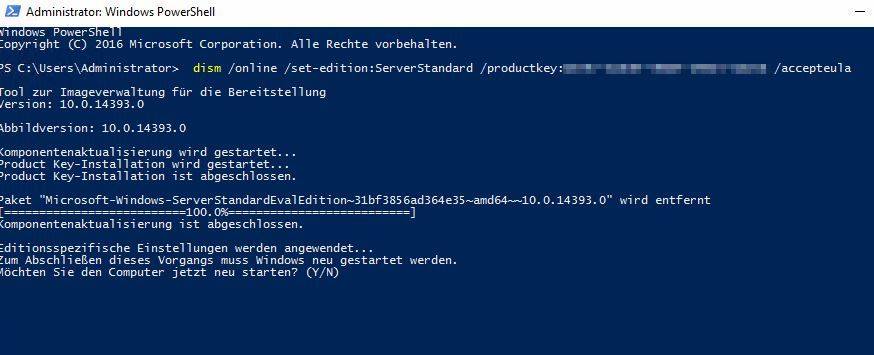
Upgrade from ServerStandardEvalCor 2019/2022 to ServerStandardCor fails

A bug was discovered in Microsoft Server Core 2019 that prevented an upgrade from the evaluation version to the Standard version. The bug occurred because the TargetEdition for the non-evaluation Standard version was missing or was not displayed. Unfortunately, this bug was also found in the Server 2022 Core version. To fix this problem, Microsoft has provided the following instructions:

1. Get the server version:

PS C:\Users\Administrator> $PSVersionTable.BuildVersion.ToString() If the version is 10.0.20348.320 or lower, please carry out step 2. According to Microsoft, this does indeed appear to be a bug, which was fixed with a hotfix.

2. Install the hotfix

PS C:\Users\Administrator> get-hotfix (Info: https://learn.microsoft.com/de-de/powershell/module/microsoft.powershell.management/get-hotfix?view=powershell-7.3)  PS C:\Users\Administrator> Dism /Online /Get-CurrentEdition The version should now be 10.0.20348.1 or higher, but still ServerStandardEvalCor

3. Upgrade:

PS C:\Users\Administrator> DISM /online /Set-Edition:ServerStandardCor /ProductKey:VDYBN-27WPP-V4HQT-9VMD4-VMK7H /AcceptEula 3.1 If this step does not solve the problem: PS C:\Users\Administrator> DISM /online /set-edition:serverstandard /productkey:VDYBN-27WPP-V4HQT-9VMD4-VMK7H /AcceptEula and if successful: PS C:\Users\Administrator> slmgr.vbs /upk PS C:\Users\Administrator> slmgr.vbs /cpky Then apply the key you purchased: PS C:\Users\Administrator> slmgr.vbs /ipk xxxxx-xxxxx-xxxxx-xxxxx-xxxxx

Activating Windows 10/11 from the command line (CMD)

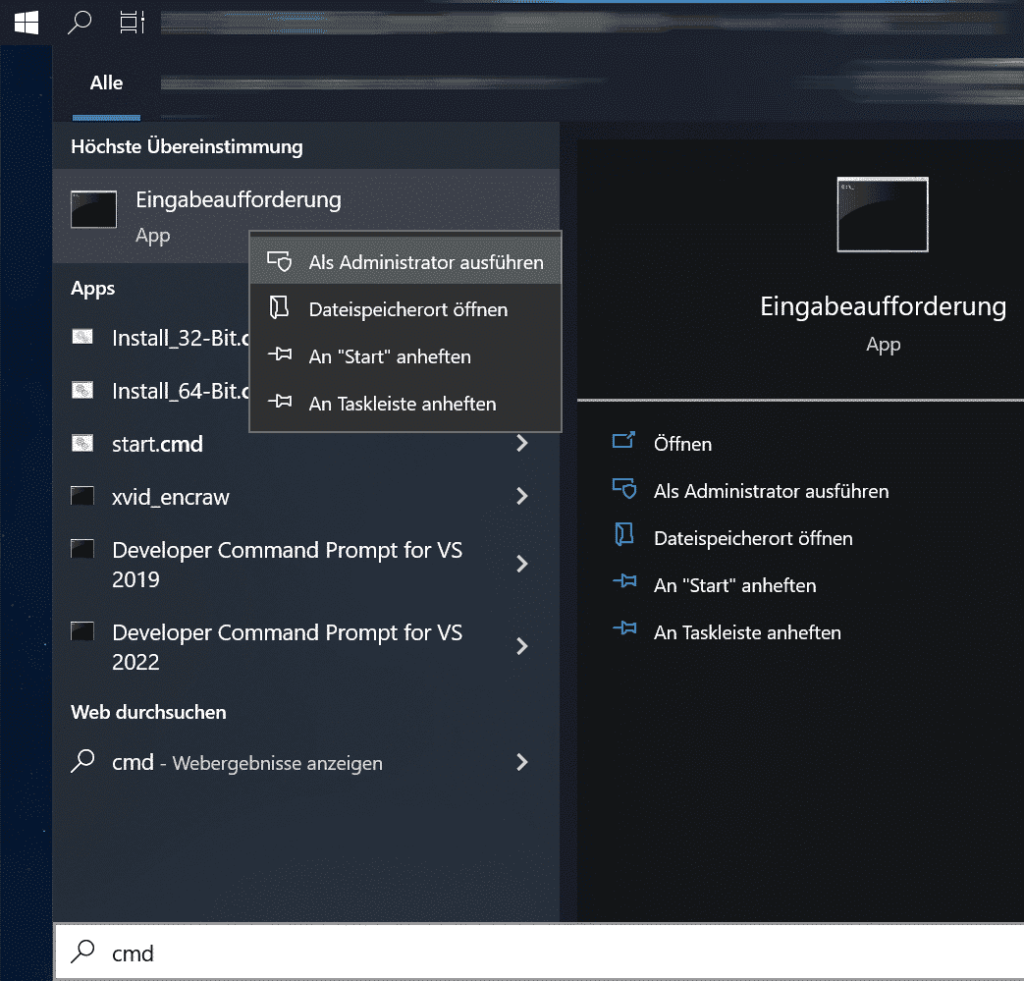
To activate Windows 10 or Windows 11 from the command line, open the Command Prompt as administrator. Click Start and type CMD, then right-click and select “Run as administrator”.

Start

Now enter the following in the Command Prompt, replacing XXXXX with your product code:

slmgr /ipk XXXXX

and activate with:

slmgr /ato

Windows activation error codes

This article gives you guidance on resolving errors that may occur when you try to use a Multiple Activation Key (MAK) or the Key Management Service (KMS) on one or more Windows computers. To find the solution for a specific error code, you can search the table below and click the corresponding link for more information and suggested solutions.

Error codeError messageActivation type
0x8004FE21This computer is not running genuine Windows.MAK
KMS client
0x80070005Access denied: the requested action requires elevated privileges.MAK
KMS client
KMS host
0x8007007b0x8007007b DNS name does not exist.KMS client
0x80070490The product key you entered didn’t work. Check the product key and try again, or enter a different one.MAK
0x800706BAThe RPC server is unavailable.KMS client
0x8007232ADNS server failureKMS host
0x8007232BDNS name does not exist.KMS client
0x8007251DNo records found for the DNS query.KMS client
0x80092328DNS name does not exist.KMS client
0xC004B100The activation server determined that the computer could not be activated.MAK
0xC004C001The activation server determined that the specified product key is invalid.MAK
0xC004C003The activation server determined that the specified product key is blocked.MAK
0xC004C008The activation server determined that the specified product key could not be used.KMS
0xC004C020The activation server reported that the Multiple Activation Key has exceeded its limit.MAK
0xC004C021The activation server reported that the Multiple Activation Key extension limit has been exceeded.MAK
0xC004F009The Software Protection Service reported that the grace period expired.MAK
0xC004F00FThe Software Licensing Service reported that the hardware ID binding is beyond the level of tolerance.MAK
KMS client
KMS host
0xC004F014The Software Protection Service reported that the product key is not available.MAK
KMS client
0xC004F02CThe Software Protection Service reported that the format for the offline activation data is incorrect.MAK
KMS client
0xC004F035The Software Licensing Service reported that the computer could not be activated with a volume license product key.KMS client
KMS host
0xC004F038The Software Protection Service reported that the computer could not be activated. The count reported by your Key Management Service (KMS) is insufficient. Please contact your system administrator.KMS client
0xC004F039The Software Protection Service reported that the computer could not be activated. The Key Management Service (KMS) is not enabled.KMS client
0xC004F041The Software Licensing Service determined that the Key Management Server (KMS) is not activated. The KMS needs to be activated.KMS client
0xC004F042The Software Protection Service determined that the specified Key Management Service (KMS) cannot be used.KMS client
0xC004F050The Software Protection Service reported that the product key is invalid.MAK
KMS
KMS client
0xC004F051The Software Protection Service reported that the product key is blocked.MAK
KMS
0xC004F064The Software Licensing Service reported that the non-genuine grace period expired.MAK
0xC004F065The Software Licensing Service reported that the application is running within the valid non-genuine period.MAK
KMS client
0xC004F06CThe Software Protection Service reported that the computer could not be activated. The Key Management Service (KMS) determined that the request timestamp is invalid.KMS client
0xC004F074The Software Protection Service reported that the computer could not be activated. No Key Management Service (KMS) could be contacted. Please see the application event log for additional information.KMS client

Changing the Microsoft Office update channel

Problem: Some Microsoft applications cannot be installed and display an error message if a previous Office installation uses a different update channel than the version to be installed (especially with volume editions).
Solution: You can either try to install the retail version first (MSI installer) and then the volume application, or you can adjust the update channel.

Changing the update channel from the console

channel01

To change your Office update channel, proceed as follows:

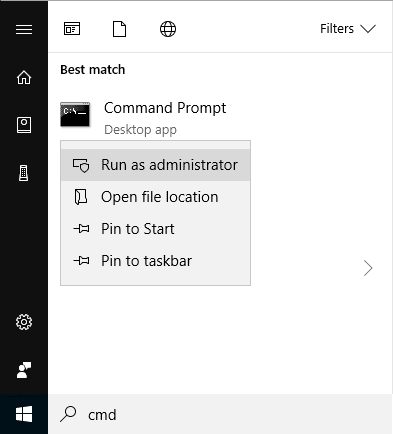
1. Start the Windows console as administrator:

runcmd

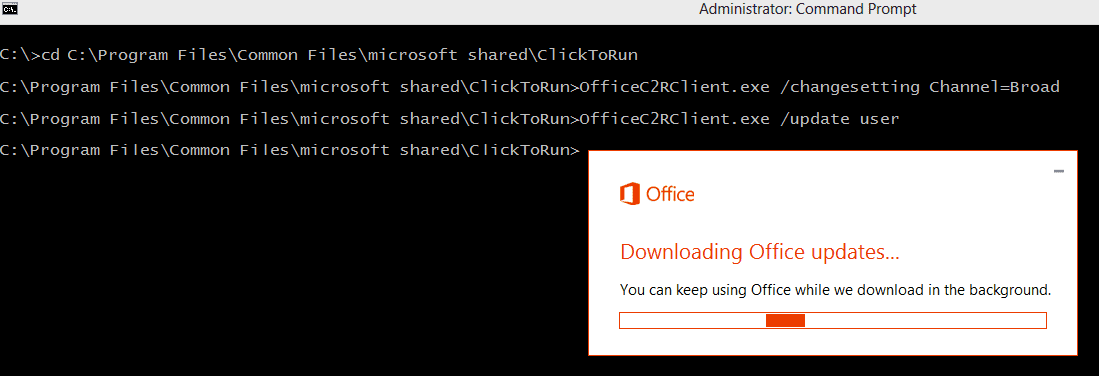
2. Use the following command to change to this folder:

cd C:\Program Files\Common Files\Microsoft Shared\ClickToRun

then change the update channel with the following command:

OfficeC2RClient.exe /changesetting Channel=Monthly

Permitted update channels are:

Channel="BetaChannel"
Channel="CurrentPreview"
Channel="Current"
Channel="MonthlyEnterprise"
Channel="Monthly"
Channel="SemiAnnualPreview"
Channel="SemiAnnual"

updateO365

Then start the update with the following command:

OfficeC2RClient.exe /update user

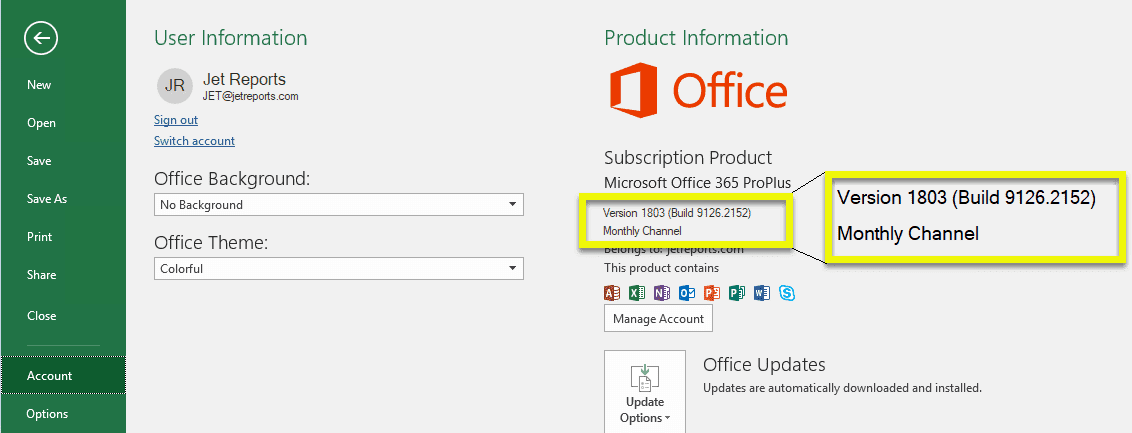
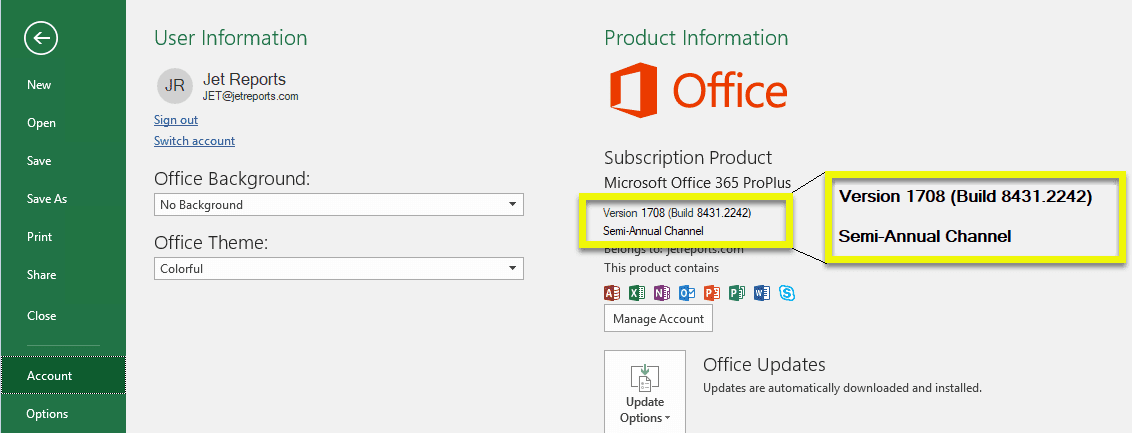
The updated update channel should now appear in your Office suite under “Account”:
channel02

Changing the update channel in the registry

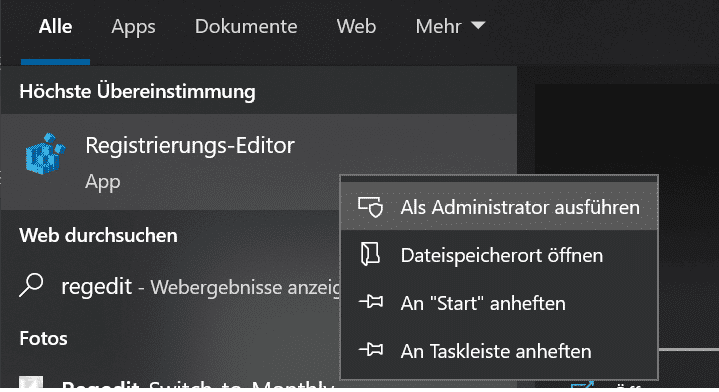
Start the Registry Editor with admin rights.

reged

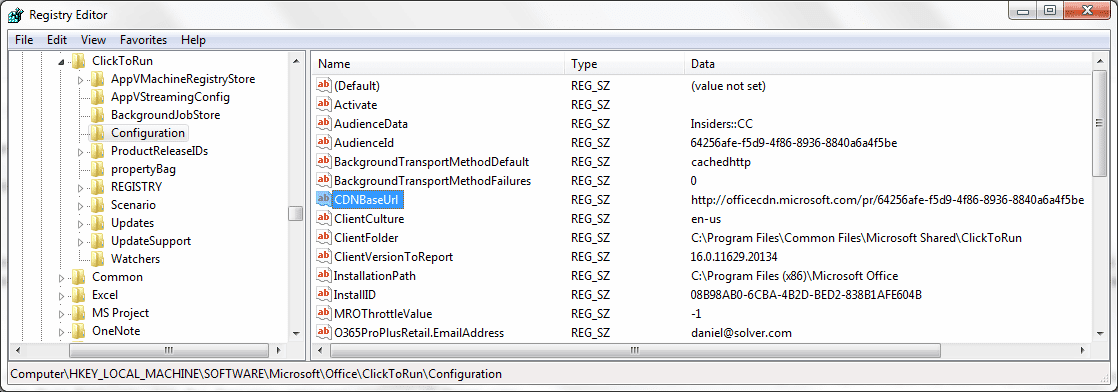
Go to the following path:

Computer\HKEY_LOCAL_MACHINE\SOFTWARE\Microsoft\Office\ClickToRun\Configuration

Regedit Switch to Monthly Channel

The update channel is specified under CDNBaseURL . To change the update channel, change the value to one of the following:

Monthly:           http://officecdn.microsoft.com/pr/492350f6-3a01-4f97-b9c0-c7c6ddf67d60
Current:           http://officecdn.microsoft.com/pr/492350f6-3a01-4f97-b9c0-c7c6ddf67d60
CurrentPreview:    http://officecdn.microsoft.com/pr/64256afe-f5d9-4f86-8936-8840a6a4f5be
SemiAnnual:        http://officecdn.microsoft.com/pr/7ffbc6bf-bc32-4f92-8982-f9dd17fd3114
SemiAnnualPreview: http://officecdn.microsoft.com/pr/7ffbc6bf-bc32-4f92-8982-f9dd17fd3114
MonthlyEnterprise: http://officecdn.microsoft.com/pr/b8f9b850-328d-4355-9145-c59439a0c4cf
BetaChannel:       http://officecdn.microsoft.com/pr/5440fd1f-7ecb-4221-8110-145efaa6372f

Showing the update channel in Office

This policy setting controls whether the Update Channel option is shown under File > Account in an Office app, such as Word. This option lets users choose the update channel through which they want to receive Office updates.

If you enable this policy setting, the Update Channel option is shown under File > Account. You must select which update channels are shown to users as options.

Important:
– Users must be a local administrator on the device to change to a different update channel.
– Beta Channel is not a supported update channel. It should only be used in test environments and by a small group of selected users, such as IT staff or application developers.

If you disable or do not configure this policy setting, the Update Channel option is not shown under File > Account.

Notes:
– This policy setting only applies to subscription versions of Office, such as Microsoft 365 Apps for business, and to subscription versions of Project and Visio.
– This policy setting takes precedence over the “Show the option for Office Insider” policy setting in cases where both policy settings are enabled.
– If you enable this policy setting, you should not enable and configure the “Target Version”, “Update Channel” or “Update Path” policy settings under Computerkonfiguration\Policies\Administrative Vorlagen\Microsoft Office 2016 (Maschine)\Updates (Computer Configuration\Policies\Administrative Templates\Microsoft Office 2016 (Machine)\Updates). If you do, those policy settings take precedence. The “Update Channel” option is still shown under “File > Account”, but it is disabled and the user cannot select an update channel.

Default setting:

Registry HiveHKEY_LOCAL_MACHINE
Registry Pathsoftware\policies\microsoft\office\16.0\common
Value Namesuppressofficechannelselector
Value TypeREG_DWORD
Enabled Value0
Disabled Value1

Beta Channel / BetaChannel

Registry HiveHKEY_LOCAL_MACHINE
Registry Pathsoftware\policies\microsoft\office\16.0\common\officechannelexposure
Value Nameinsiderfast
Value TypeREG_DWORD
Default Value0
True Value1
False Value0

Current Channel (Preview) / CurrentPreview

Registry HiveHKEY_LOCAL_MACHINE
Registry Pathsoftware\policies\microsoft\office\16.0\common\officechannelexposure
Value Namefirstreleasecurrent
Value TypeREG_DWORD
Default Value0
True Value1
False Value0

Current Channel / Current

Registry HiveHKEY_LOCAL_MACHINE
Registry Pathsoftware\policies\microsoft\office\16.0\common\officechannelexposure
Value Namecurrent
Value TypeREG_DWORD
Default Value1
True Value1
False Value0

Monthly Enterprise Channel / MonthlyEnterprise

Registry HiveHKEY_LOCAL_MACHINE
Registry Pathsoftware\policies\microsoft\office\16.0\common\officechannelexposure
Value Namemonthlyenterprise
Value TypeREG_DWORD
Default Value1
True Value1
False Value0

Semi-Annual Enterprise Channel (Preview)

Registry HiveHKEY_LOCAL_MACHINE
Registry Pathsoftware\policies\microsoft\office\16.0\common\officechannelexposure
Value Namefirstreleasedeferred
Value TypeREG_DWORD
Default Value0
True Value1
False Value0

Semi-Annual Enterprise Channel

Registry HiveHKEY_LOCAL_MACHINE
Registry Pathsoftware\policies\microsoft\office\16.0\common\officechannelexposure
Value Namedeferred
Value TypeREG_DWORD
Default Value0
True Value1
False Value0

Overview of the update channels

The following list gives a brief overview of the update channels and the cycles in which updates are rolled out:

ChannelAvailable toUpdate level compared to main release
Beta ChannelAll Microsoft 365 Apps subscriptions– 4 – 6 weeks
Current Channel (Preview)All Microsoft 365 Apps subscriptions– 2 – 4 weeks
Current ChannelAll Microsoft 365 Apps subscriptions0 months
Monthly Enterprise ChannelMicrosoft 365 Apps subscriptions for Business and Enterprise+ 1 month
Semi-Annual Enterprise Channel (Preview)Microsoft 365 Apps subscriptions for Business and Enterprise+ 2 – 6 months
Semi-Annual Enterprise ChannelMicrosoft 365 Apps subscriptions for Business and Enterprise+ 6 – 24 months
One-time purchase installationOne-time purchase installations of
Office Home & Student 2016/2019/2021, Office Home & Business 2016/2019/2021, Office Professional 2016/2019/2021
Little to no feature updates. Mainly bug fixes and security updates.
Volume License
Office 2016 (MSI-based installation )
Office 2019 Version 1808
Office LTSC 2021 (Version 2108)
Volume License installations of Office Standard 2016/2019/LTSC 2021, Office Professional Plus 2016/2019/LTSC 2021Little to no feature updates. Mainly bug fixes and security updates.

Server 2019 Standard Core – installation/activation

Installation

1. Please download the “Server Standard 2019” ISO from our server.
2. After the download, create a bootable DVD or a bootable USB flash drive with the ISO you have just downloaded.
3. Now start the setup from your bootable medium.

VirtualBoxVM JVjxFKNAQw

3.1 Click “Jetzt installieren” (“Install now”).

VirtualBoxVM ScvgR7DGZL

3.2 Select your language here.

VirtualBoxVM Z4FOFSKcnt

3.3 Here, select “I don’t have a product key” and click Next. The Server Core edition is activated from the console; entering a key here would produce an error message.

VirtualBoxVM jeetOinlUG

3.4 Here, select the first entry “Windows Server 2019 Standard” – WITHOUT (Desktop Experience)!

3.5 Continue the installation until your Server Core edition installation is complete and, after the server restarts, continue with the activation.

Activation

After you sign in to Windows Server Core, the command prompt is displayed. From there you can activate your copy of Windows Server 2019 Core.

To activate your Server Core edition, all you need is the product code (which you can find in the email we sent you after your order) and the following 2 commands:

1. Install the product code on the system:
start /w slmgr.vbs -ipk XXXXX-XXXXX-XXXXX-XXXXX-XXXXX
2. Activate the installed product code:
start /w slmgr.vbs -ato

Your Server 2019 Core is now activated and ready to use.

Error: The set of folders cannot be opened. Your profile is not configured.

Error message: Cannot start Microsoft Outlook. Cannot open the Outlook window. The set of folders cannot be opened. Your profile is not configured.

Method 1 – Reset

1. Close Outlook.
2. Open “Run” in Windows

[Windows key]+[R]

or via the Start menu
Select Start > Run. Enter the following command here:

Type Outlook.exe /resetnavpane in the Open box, and then select OK.

Method 2 – Delete the Outlook profile

1. Open File Explorer and go to the folder:

C:\Users\USERNAME\AppData\Roaming\Microsoft\Outlook

and delete this file:

Outlook.xml

(on older systems: C:\Dokumente und Einstellungen\USERNAME\Anwendungsdaten\ Microsoft\Outlook)
2. Now restart Outlook.

Further methods: external link

You can find some further troubleshooting methods at the following link (in German):

https://www.buero-kaizen.de/outlook-oeffnet-nicht/

Upgrading 2016/2019/2022/2025 Eval to the full version Standard, Essentials, Datacenter

Windows Server: upgrade from 2016/2019/2022/2025 evaluation to the full version Standard, Essentials, Datacenter

Please note that you must convert your server evaluation edition into a full version before activation. This guide explains how to do this.Converting Windows Server Evaluation to Standard

1. Start the console.

Start the console as administrator and proceed as follows to convert your Eval/evaluation version into a Standard, Essentials or Datacenter full version.

Show the available target editions:
dism /online /get-targeteditions

The output should list “Standard” and “Datacenter” so that the upgrade to the correct edition is possible. If the target edition is not displayed, you may have installed the wrong server edition. Please check the order email (next to the product code we sent you), then download and install the correct ISO file.

Caution with Essentials editions. Essentials cannot be selected and activated here, because the Essentials edition is not a separate version and is initially treated as Standard. With the Essentials edition, only the included features are unlocked.

Now remove all product codes registered in the system (if product codes that may be faulty are stored in the system, this may lead to problems)

slmgr /upk

If your server uses NIC teaming, disable NIC teaming before the upgrade and enable it again after the upgrade has finished.

2. Upgrade/activation:

The upgrade to a full version is carried out using an AVMA/GVLK product code. These product codes have been provided by Microsoft for this purpose.

Windows Server 2025 Standard and Datacenter:
Evaluation to 2025 Datacenter: dism /online /set-edition:ServerDatacenter /productkey:D764K-2NDRG-47T6Q-P8T8W-YP6DF /accepteula
Evaluation to 2025 Standard/Essentials: dism /online /set-edition:ServerStandard /productkey:TVRH6-WHNXV-R9WG3-9XRFY-MY832 /accepteula

Windows Server 2022 Essentials, Standard and Datacenter:
Evaluation to 2022 Datacenter: dism /online /set-edition:ServerDatacenter /productkey:W3GNR-8DDXR-2TFRP-H8P33-DV9BG /accepteula
Evaluation to 2022 Standard: dism /online /set-edition:ServerStandard /productkey:YDFWN-MJ9JR-3DYRK-FXXRW-78VHK /accepteula
Evaluation to 2022 Essentials: dism /online /set-edition:ServerStandard /productkey:YDFWN-MJ9JR-3DYRK-FXXRW-78VHK /accepteula

Windows Server 2019 Essentials, Standard and Datacenter:

Evaluation to 2019 Datacenter:
dism /online /set-edition:ServerDatacenter /productkey:H3RNG-8C32Q-Q8FRX-6TDXV-WMBMW /accepteula
Depending on the version, you may need to use a different AVMA code for the upgrade here. If you have problems, use this one:
dism /online /set-edition:ServerDatacenter /productkey:WMDGN-G9PQG-XVVXX-R3X43-63DFG /accepteula

Evaluation to 2019 Standard:
dism /online /set-edition:ServerStandard /productkey:TNK62-RXVTB-4P47B-2D623-4GF74 /accepteula
Depending on the version, you may need to use a different AVMA code for the upgrade here. If you have problems, use this one:
dism /online /set-edition:ServerStandard /productkey:N69G4-B89J2-4G8F4-WWYCC-J464C /accepteula

Evaluation to 2019 Essentials:
dism /online /set-edition:ServerStandard /productkey:TNK62-RXVTB-4P47B-2D623-4GF74 /accepteula
Depending on the version, you may need to use a different AVMA code for the upgrade here. If you have problems, use this one:
dism /online /set-edition:ServerStandard /productkey:N69G4-B89J2-4G8F4-WWYCC-J464C /accepteula

Windows Server 2016 Standard, Datacenter and Essentials:
Evaluation to 2016 Datacenter:dism /online /set-edition:ServerDatacenter /productkey:TMJ3Y-NTRTM-FJYXT-T22BY-CWG3J /accepteula
Evaluation to 2016 Standard: dism /online /set-edition:ServerStandard /productkey:C3RCX-M6NRP-6CXC9-TW2F2-4RHYD /accepteula
Evaluation to 2016 Essentials: dism /online /set-edition:ServerStandard /productkey:C3RCX-M6NRP-6CXC9-TW2F2-4RHYD /accepteula

After the successful upgrade, you now have a full version, but it is not yet activated; this is explained in the next step.

Now you can activate your server with the product code you purchased:

Windows Server 2022 Essentials, Standard and Datacenter:
Server 2025 Datacenter: dism /online /set-edition:ServerDatacenter /productkey:(YOUR_PRODUCT_CODE) /accepteula
Server 2025 Standard/Essentials: dism /online /set-edition:ServerStandard /productkey:(YOUR_PRODUCT_CODE) /accepteula

Server 2022 Datacenter: dism /online /set-edition:ServerDatacenter /productkey:(YOUR_PRODUCT_CODE) /accepteula
Server 2022 Standard: dism /online /set-edition:ServerStandard /productkey:(YOUR_PRODUCT_CODE) /accepteula
Server 2022 Essentials: dism /online /set-edition:ServerStandard /productkey:(YOUR_PRODUCT_CODE) /accepteula

Windows Server 2019 Essentials, Standard and Datacenter:
Server 2019 Datacenter: dism /online /set-edition:ServerDatacenter /productkey:(YOUR_PRODUCT_CODE) /accepteula
Server 2019 Standard: dism /online /set-edition:ServerStandard /productkey:(YOUR_PRODUCT_CODE) /accepteula
Server 2019 Essentials: dism /online /set-edition:ServerStandard /productkey:(YOUR_PRODUCT_CODE) /accepteula

Windows Server 2016 Essentials, Standard and Datacenter:
Server 2016 Datacenter: dism /online /set-edition:ServerDatacenter /productkey:(YOUR_PRODUCT_CODE) /accepteula
Server 2016 Standard: dism /online /set-edition:ServerStandard /productkey:(YOUR_PRODUCT_CODE) /accepteula
Server 2016 Essentials: dism /online /set-edition:ServerStandard /productkey:(YOUR_PRODUCT_CODE) /accepteula

Alternatively, activation (after the upgrade!) can also be carried out with the following commands:

slmgr /ipk (YOUR_PRODUCT_CODE)
slmgr /ato

Please note that “Server Standard” is still displayed for the “Essentials Edition”, because there is no separate version for the Essentials edition – only the features of the Essentials edition are unlocked.

4. Finish

Restart the server once more. The activation is now complete.

Office 2016 installation/activation guide

This guide explains how to download and install Office 2016 Pro Plus in a few steps.

  1. Download / extract

1.1 To download your Office software, please visit our download portal at: Downloads in your customer account

1.2 Click the download button for the language that suits you. If you need other languages, please contact us.

1.3 Click the version that is suitable for your system:

1.4 Now click the “Herunterladen” (“Download”) button to start the download

firefox KD6MludM2v

1.5 After the download has finished, you can either mount the downloaded ISO (by double-clicking it – in Windows 10 and Windows 11), extract it (e.g. with tools such as WinRar or Winzip) or burn it to a DVD with a suitable tool.

1.6 Once the ISO has been extracted successfully, please continue with point 2.

2. Installation

2.1 Open the folder you have just extracted; it should contain several subfolders and the “setup.exe” file. Start setup.exe by double-clicking it.

    • If an error message appears here reporting an Office version that is already installed, you must remove all preinstalled Office versions before the installation. You can do this with the Microsoft Fix-It tool:
    • You can download the Microsoft Fix-it tool here: https://outlookdiagnostics.azureedge.net/sarasetup/SetupProd_OffScrub.exe
    • After uninstalling old Office editions, you can continue with the installation.

2.2 Follow any instructions in the setup and wait until the setup has finished successfully.

3. Activation

3.1 Unless stated otherwise in the order email, activation is done via the Office activation wizard and NOT VIA setup.office.com). The ProPlus editions have their own activation wizard

3.2 After installation, open an Office application such as Word, Excel, etc. – the Office activation wizard will open.

(If it does not open, create a blank document, click File -> Account -> in the top menu and click “Change Product Key” there)

If you purchased a regular product code (i.e. not a code for activation by phone), select “I want to activate the software over the Internet” and click “Next”. In the following window, enter the product code you purchased and complete the activation of your product.

Once the online activation has been completed successfully, this guide ends for you. Enjoy your product. For activation by phone, please read on.

3.3 IMPORTANT: If you purchased a product with activation by phone, please continue with the following guide: Activation by phone – Microsoft Office

Further help / error messages:

Zero-day vulnerability “Follina”: how to protect yourself

Important for Office 2013, 2016 and 2019 users.

Microsoft Office contains a security vulnerability that allows code to be executed via a manipulated document (e.g. a Word document) – simply hovering the mouse pointer over an Office file is enough to be infected via the vulnerability, which is called “Follina”. Until Microsoft releases a patch, it is advisable to implement a workaround to disable the MSDT URL protocol. It is not yet clear exactly which program versions are affected by the vulnerability. Security researchers have managed to reproduce the attack with Office 2013, Office 2016 and Office 2021; others were unable to reproduce it, at least with Office 2021.

“The attacker can then install programs, view, change, or delete data, or create new accounts in the context allowed by the user’s rights”, Microsoft explains. However, so-called chaining of vulnerabilities is not unusual. In this case, a vulnerability such as Follina is used to infect the computer, for example, while another one is used to escalate privileges.

How to protect yourself

To prevent the vulnerability from being exploited, Microsoft recommends disabling the URL handler for MSDT. Side effect: help files can no longer be opened as a link, but very few people are likely to need them. Before deleting it, you should back up the corresponding registry entry. Here is how it works:

  1. Press the Windows key. Type the command cmd and press Enter.
  2. Type reg export HKEY_CLASSES_ROOT\ms-msdt msdt.reg and press Enter.
  3. Close the window with X and press the Windows key.
  4. Type the command cmd, right-click Command Prompt, then click Run as administrator and Yes.
  5. Enter reg delete HKEY_CLASSES_ROOT\ms-msdt /f and press Enter. After restarting Windows, the problematic URL handler is disabled.
  6. It is not known when an official patch to fix the vulnerability will follow. Once Microsoft has fixed the problem, you can restore the setting: open the folder C:\Benutzer (C:\Users) in File Explorer, double-click your user name, then the file msdt.reg, click Yes twice and then OK.

Although the security researchers only discovered the malicious document in isolated targeted attacks in Belarus, instructions and scripts for creating such malicious files are now available. However, current security programs detect and delete them.

Installing Office Click-to-Run and MSI side by side

Problem: Microsoft does not support installing Click-to-Run and MSI versions of Office side by side, and an error message inevitably appears when you try to install, for example, Office and also Project, Visio, etc.

Solution:

Important: you must follow this order! First install the version with the MSI installer (retail/OEM), then apply the following registry trick and then install the C2R installation (volume edition). The “trick” does not work the other way round.

  1. Install your Office/Visio/Project version (MSI installer / retail/OEM) and activate it.
  2. Now open the Registry Editor (press Windows key + R, type “Regedit” and confirm with Enter).
  3. Navigate to the following entry that matches your Office version:
Office 2007,2010,2013,2016,2019,2021,2024:
For 32-bit editions (the last folder may differ depending on the version):
HKEY_LOCAL_MACHINE\SOFTWARE\WOW6432Node\Microsoft\Windows\CurrentVersion\Uninstall\Office16.PROPLUS

For 64-bit editions (the last folder may differ depending on the version):
Computer\HKEY_LOCAL_MACHINE\SOFTWARE\Microsoft\Windows\CurrentVersion\Uninstall\ProPlus2021Volume - de-de
or
Computer\HKEY_LOCAL_MACHINE\SOFTWARE\Microsoft\Windows\CurrentVersion\Uninstall\ProPlus2019Volume - de-de
or
HKEY_CURRENT_USER\Software\Microsoft\Windows\CurrentVersion\Uninstall\Office16.PROPLUS

Office 365 - Business:
Computer\HKEY_LOCAL_MACHINE\SOFTWARE\Microsoft\Windows\CurrentVersion\Uninstall\O365BusinessRetail – de-de
or
Computer\HKEY_LOCAL_MACHINE\SOFTWARE\WOW6432Node\Microsoft\Windows\CurrentVersion\Uninstall\O365BusinessRetail – de-de

Office 365 (xxxxxxx = your edition):
Computer\HKEY_LOCAL_MACHINE\SOFTWARE\Microsoft\Windows\CurrentVersion\Uninstall\O365xxxxxxxRetail – de-de
or
Computer\HKEY_LOCAL_MACHINE\SOFTWARE\WOW6432Node\Microsoft\Windows\CurrentVersion\Uninstall\O365xxxxxxxRetail – de-de

4. Create a DWORD here with the name: SystemComponent and the value: 1

This value prevents your Office version from being detected by the installer (C2R or MSI), so no error message is shown any more.

5. Now install the Office/Visio/Project version (C2R installer / volume) and activate it.
6. After a successful installation, you can remove the value again and use your Office package and your side-by-side installation together.

Converting Windows Server from evaluation to full version

Here is a short description of how to convert an evaluation version of Windows Server 2019 into a full version.

This guide applies to the server editions 2012, 2016, 2019 and 2022

Procedure

After a successful trial period, it is not necessary to delete the operating system of an evaluation version and replace it with a “full” one. It is also not possible to activate an evaluation version with a full product code without first converting it into a full version. You can convert the trial version into a full version as follows:

1. Install the operating system

2. You can convert the trial version into a full version with the product code you purchased.

Start the PowerShell console as administrator and run the following command (replace [YOUR PRODUCT CODE] with your product code):

Server Standard:

dism /online /set-edition:ServerStandard /productkey:[YOUR PRODUCT CODE] /accepteula

Server Datacenter:

dism /online /set-edition:ServerDatacenter /productkey:[YOUR PRODUCT CODE] /accepteula

Restart the server.

4. You can verify the result with the winver.exe command.

Check whether the operating system can be converted

With the command DISM /online /Get-TargetEditions you can verify whether the installed version can be converted:

DISM /online /Get-CurrentEdition – shows which version is currently installed.

You can find a complete description of the DISM commands here: Windows edition-servicing command-line options

Office 2021: Couldn’t install, error code 0-2054(0)

The error code “Error 0-2054(0)” means that the “Microsoft Deployment Kit”, which is responsible for installing and downloading the Office files, did not receive the commands required to install the product.

Solution: Start the installation by double-clicking the setup file (exe) – depending on your system, either the downloaded Office_2021_DE_32Bits.exe or Office_2021_DE_64Bits.exe.

Office 2021 installation guide

⚠️ IMPORTANT: If you cannot enter the product key after installation, a trial version has been activated automatically. It expires after about 1–2 weeks.

To activate your Office permanently, open the activation wizard → select “Online activation” → “Next” → enter the product key you received.

Alternatively, you can open a blank document (e.g. in Word or Excel) → File → Account → Change Product Key and enter your license code there.

1️⃣ Step: Clean up the system

Before you start installing Microsoft Office 2021 Professional Plus, all existing Office versions must be completely removed to avoid installation or activation errors.

Microsoft provides an official tool for this, which you can download here:

👉 Download the Microsoft Fix-It tool

Direct download of the tool: https://outlookdiagnostics.azureedge.net/sarasetup/SetupProd_OffScrub.exe

2️⃣ Step: Download Office 2021

As soon as all old versions have been removed, you can download Microsoft Office 2021 Professional Plus. To do so, visit our download portal.

There, click “Microsoft Office” → “Microsoft Office 2021 Professional Plus – Deutsch” and then the download button. You will be redirected to the cloud provider automatically.

There, select the version that suits your system:
→ Office_2021_DE_32Bits.exe or Office_2021_DE_64Bits.exe

Please wait until the download is fully complete.

💡 Info: If the download is interrupted, please try another browser (e.g. Chrome or Edge) and check whether a firewall, antivirus program or browser add-ons are blocking the download.

Download folder

3️⃣ Step: Start the installation

Start the installation by double-clicking the downloaded setup file (32-bit or 64-bit depending on your system).

❗ Note: Please do not extract it! Extracting the file leads to installation errors (Error Code 0-2054(0)).

💡 Info: If a Windows Defender warning appears at startup, click “More info” → “Run anyway”. This message is harmless and may appear because the installer downloads additional components directly from Microsoft.

Defender warning
Defender exception

Click “Run anyway” to continue the installation.

4️⃣ Step: Extract the files & complete the installation

Now select the destination folder into which the Office files are to be extracted.

Extraction

Then click “Install” to extract the files.

Progress

Once the extraction is complete, the setup starts automatically and installs all required components.

Installation in progress
Installation complete

Your Microsoft Office 2021 Professional Plus has been installed successfully.

5️⃣ Step: Activation

⚠️ IMPORTANT: If you cannot enter the product code after installation, a trial version has been activated that expires after 1–2 weeks.

Open the activation wizard → click “Online activation” → “Next” → enter your license code. Alternatively: open an Office app → File → Account → Change Product Key → enter the code.

  • 5.1 Unless stated otherwise in the order email, activation is done via the Office activation wizard – not via setup.office.com.
  • 5.2 After installation, open an application (e.g. Word or Excel). The activation wizard opens automatically.
  • 5.3 If you purchased activation by phone, please follow this guide: 👉 Activation by phone – guide
  • 5.4 With a regular online license, select “I want to activate the software over the Internet” → click “Next”.
  • 5.5 In the next window, enter your product key and complete the activation.

💡 Info: You can also enter the product key manually by opening a blank document (e.g. in Word or Excel) → File → Account → Change Product Key and entering your license code there.

🔧 Further help & error messages

✅ Finally: After successful activation, check under File → Account whether the status “Product Activated” is displayed. You can then turn your antivirus program back on and use Office as usual.

Activation by phone – Microsoft Windows

If you have purchased a Windows product that requires activation by phone, this guide explains exactly how to proceed.

1. Press the key combination [Windows] + [R] (alternatively, click the Start icon, type CMD and press Enter) and enter the command “slui 4” in the Run dialog.

2. A new window opens. Select the entry “Deutschland” (Germany) in the drop-down menu and click “Weiter” (“Next”).

3. An installation ID with nine blocks of numbers appears. Above it you will find a phone number that you need to call. Alternatively, you can also send us this installation ID (to office@softwareking24.com) and we will take care of this step for you.

4. If you want to activate by phone yourself: an automated voice asks you to enter the blocks of numbers using your phone’s keypad. You will then receive a confirmation ID with the blocks A to H. Write this number down on a piece of paper.

5. Then click the “Bestätigungs-ID eingeben” (“Enter confirmation ID”) button and enter the ID you have just received.

6. Complete the activation process with the “Windows aktivieren” (“Activate Windows”) button.

7. Done. We hope you enjoy your product.

Activation by phone – Microsoft Office

If you have purchased a product that requires activation by phone, this guide explains exactly how to proceed.

1. In the first step, select activation by phone instead of online activation. You should see the following window:

2. Under “Step 1”, select your country. Under “Step 2” you can see your installation ID; you will definitely need this number for activation by phone.

3. Now pick up your landline phone and dial 0 800 2848 283. / Alternatively, you can also send us this number (as a screenshot in good, legible quality) and we will take care of it for you.

4. If you decide to activate by phone yourself, please call the (free) number above. You will hear an automated voice that guides you through the activation process. When prompted, press 3 on your phone for “other Office products”.

5. As we have already opened the window in step 1 (see above), we press 1. If you have not opened the window, follow the instructions of the automated voice to get to this window.

6. Now do not choose the text message (SMS) option but the audio instructions, so press 2.

7. When prompted, enter your installation ID block by block. Type each block whenever the automated voice asks you to.

8. When asked on how many PCs the installation ID has been activated, press 0, as you are the only person with this ID.

9. The automated voice then reads out the confirmation ID, which you enter block by block, again when prompted, in the fields for the respective letters.

Now click “Next” and the activation is completed successfully.

SOFORT payment made, but product “on hold”

Although the name “SOFORT” (German for “instant”) suggests that this payment method triggers delivery immediately, a few customers may still have to expect a short wait. This can have various reasons. For example, it can take a little time until the payment is credited by the payment provider and the shop receives confirmation – this process can take up to 24 hours, although that is not usually the case.

Microsoft Office – changing, activating or removing the product code from the console (CMD)

If the activation window keeps appearing when you start Microsoft Office even though you have already entered a product key, you can use the following guide to check whether a wrong or blocked key is stored – and change or remove it.

Step 1: Open the Command Prompt (CMD) as administrator

1. Open the Start menu (Windows logo at the bottom left).
2. Type cmd in the search box.
3. Right-click “Command Prompt” and select Run as administrator.
Important: This guide does not work without administrator rights.

Step 2: Change to the Office folder

For the following commands to work, you need to be in the correct Office program folder. The folder name depends on your Office version and on whether you are using a 32-bit or 64-bit installation.

How to find the right version:

  • Open any Office application (e.g. Word or Excel).
  • In the menu at the top, click File → Account (or “Help” in older versions).
  • There you can see the exact version (e.g. “Microsoft Office Professional Plus 2016” or “Microsoft 365 Apps for business”).

The version numbers correspond to these folders:

  • Office 2007 → Office12
  • Office 2010 → Office14
  • Office 2013 → Office15
  • Office 2016 → Office16
  • Office 2019 → Office16
  • Office 2021 → Office16
  • Office 2024 → Office16

Example for changing to the folder, Office 2016–2024 (64-bit installation):
cd "C:\Program Files\Microsoft Office\Office16"

Example for changing to the folder, Office 2016–2024 (32-bit installation on 64-bit Windows):
cd "C:\Program Files (x86)\Microsoft Office\Office16"

Example for changing to the folder, Office 2007 (64-bit installation):
cd "C:\Program Files\Microsoft Office\Office12"

Example for changing to the folder, Office 2007 (32-bit installation on 64-bit Windows):
cd "C:\Program Files (x86)\Microsoft Office\Office12"

Example for changing to the folder, Office 2010 (64-bit installation):
cd "C:\Program Files\Microsoft Office\Office14"

Example for changing to the folder, Office 2010 (32-bit installation on 64-bit Windows):
cd "C:\Program Files (x86)\Microsoft Office\Office14"

Example for changing to the folder, Office 2013 (64-bit installation):
cd "C:\Program Files\Microsoft Office\Office15"

Example for changing to the folder, Office 2013 (32-bit installation on 64-bit Windows):
cd "C:\Program Files (x86)\Microsoft Office\Office15"

Important notes:

  • “Office16” is used for several versions (2016, 2019, 2021, 2024, Microsoft 365). → Which Office exactly is installed therefore depends on your license, not on the folder name.
  • If you are unsure, try both paths one after the other: Program Files and Program Files (x86).
  • If you cannot find the folder, open Windows Explorer and search for OSPP.VBS – this is the file you need in the next step.

Step 3: Show installed product keys

The following command shows which keys are stored on your PC:

cscript OSPP.VBS /dstatus

Among other things, the output contains:

  • How many keys are installed
  • Which Office version the key belongs to
  • Whether the key is valid or blocked
  • The last 5 characters of the key (e.g. XXXXX)

Step 4: Remove an unwanted key

If several keys are installed, remove the wrong or blocked key with:

cscript OSPP.VBS /unpkey:XXXXX

(XXXXX = the last 5 characters of the key that you saw in step 3)

Step 5: Enter a new product key

To store a new key, use this command:

cscript OSPP.VBS /inpkey:XXXXX-XXXXX-XXXXX-XXXXX-XXXXX

(XXXXX-XXXXX… = your new Office product key)

Step 6: Activate Office

Finally, activate the key you entered with:

cscript OSPP.VBS /act

Done!

If everything worked, Office should now start without the activation window. This guide works for all versions from Office 2007 to Office 2024.

How do I create a bootable USB flash drive for Windows 10 Professional?

To create a bootable USB flash drive, you need a USB flash drive with a capacity of at least 8 GB, an ISO or DVD image and a special tool (Rufus).

Important: all data on the flash drive will be completely erased by this process.

Proceed as follows:

  • 3 Connect the USB flash drive
  • 4 Start the tool (Rufus) by double-clicking the “rufus.exe” file – the tool detects your USB flash drive
  • 5 Click “AUSWAHL” (“SELECT”) and choose the ISO file (#1 in screenshot 1)
  • 6 Click “START” to start the process (#2 in screenshot 1)
  • 7 Confirm the warning that the USB flash drive will be overwritten
  • 8 Wait until the process is complete – this is indicated by the message “FERTIG” (“READY”)
  • 9 Close the tool by clicking “SCHLIESSEN” (“CLOSE”)

Error message: TOKEN_NOT_FOUND

Solution:

You need to install the correct software and use the activation wizard of your Office product. setup.office.com is intended for activating Home, Student, etc. retail/OEM versions and is not compatible with the product code you purchased.

Download your software here: Download portal

Installation and activation guide for Microsoft Office Professional Plus products

INFO

Download portal & software versions

Download your Office software from the download portal.

Note: The following steps show the download & installation of Office 2019 Pro Plus. The process is identical for Office 2007/2010/2013/2021.

STEP 1

Download & extract

1.1 Open Downloads in your customer account and click “Download” for the product you want.

Important: First extract the downloaded .zip completely. Do not start the setup directly from the ZIP file.

1.2 Extract the ZIP file to a folder of your choice.

STEP 1.3

Start the setup

Depending on your system, start the matching batch file:

  • setup_32-Bit.bat (for 32-bit)
  • setup_64-Bit.bat (for 64-bit)

Do not use: helper.exe (part of the Microsoft Deployment Kit, not the setup).

Office already installed? Completely uninstall old versions with the Microsoft tool:
SetupProd_OffScrub.exe (Fix-It)

After uninstalling, run the setup again. The installer then downloads the required files from the Microsoft CDN and installs Office automatically.

STEP 2

Activation

  • 2.1 Unless stated otherwise in the order email, activation is done via the Office activation wizard (not via setup.office.com).
  • 2.2 After installation, open an Office app (e.g. Word, Excel). The activation wizard starts automatically.
  • 2.3 Chose activation by phone? Follow this guide: Activation by phone
  • 2.4 With a regular online key: select “I want to activate the software over the Internet” → Next.
  • 2.5 Enter the product key and complete the activation.

HELP

Further help & error messages

Office 2019 Professional Plus installation and activation guide

  • Download the software by clicking the link given in the email, or copy it and paste it into the address bar of your web browser (e.g. Google Chrome, Mozilla Firefox, etc.). The following screen opens:
  • The file on the left is the 64-bit version of Microsoft Office 2016 Professional Plus.

The one on the right is therefore the 32-bit version. Please click the version of Microsoft Office 2016 Professional Plus that applies to you. In our example we chose the 64-bit version. After clicking the icon on the left, the following screen opens:

  • In the window shown, click the blue “Herunterladen” (“Download”) button. The following warning is displayed:
  • Please understand that the software is simply too large to be checked by the Google Drive virus scanner. However, we can assure you that we have checked the software with a virus scanner ourselves beforehand and also use it on our own company devices. So click the “Trotzdem herunterladen” (“Download anyway”) button.
  • Now choose where to save the installation file. Please note that, depending on the version, the file requires up to 1.5 GB of storage space. Please take this into account when choosing the location.
  • When the download has finished, open the downloaded ISO file. In the following view, run the file “setup.exe”.
  • The Office installation wizard now opens. In the window shown, select the “Jetzt installieren” (“Install Now”) button to install Office with the settings recommended by Microsoft. Please make sure that your hard disk partition “C:” has enough free disk space (approx. 3 GB) available. If you have advanced knowledge, select the lower “Anpassen” (“Customize”) button and adjust the settings available there. In our example, we will use the settings recommended by Microsoft for the installation.
  • After you click the “Jetzt installieren” (“Install Now”) button, the software is installed fully automatically. All you have to do is wait for the bar to fill up green.
  • Once the installation has run, the following window is displayed. Please click the “Schließen” (“Close”) button at the bottom right.
  • After the installation, click the Start button and select one of the Office programs (e.g. Word, Excel, PowerPoint, etc.). In our example, we chose Excel:
  • Now select the “Leere Arbeitsmappe” (“Blank workbook”) button marked in the image at the top left and click it. A new blank workbook opens:
  • Now click the “Datei” (“File”) tab at the top left (marked in red). In the view that opens, select the “Konto” (“Account”) menu item, as shown in the following images:
  • In this window, please make sure that the software is not assigned to a Microsoft account. If it is, first disconnect from this account before carrying out the remaining steps. If the software is not yet assigned to an account, you will see a sign-in prompt on the left half of the screen, as in the image above, and the option to change the product key on the right half. Please select the option on the right, “Product Key ändern” (“Change Product Key”). The following screen then appears:
  • Now enter the 25-character license key that was sent to you by email. The software checks it immediately to make sure that you have the right license key for the software. You are then given the option to activate the license key you entered, as shown in the following window.
  • When you now click “Jetzt installieren” (“Install Now”), the software will try to activate itself with Microsoft fully automatically. However, this is initially prevented by a Windows security tool, as shown in the following image. On your desktop, open the icon marked in the image on the taskbar and then click “Ja” (“Yes”) in the window that appears. Please also make sure you have an internet connection, as the software is activated online.
  • If you now close Excel and open it again, you will see the following view under the

menu item -> File Account:

  • Your software is now activated and you can use it to its full extent.

Error message: Your installation cannot be activated because you have already reached the limit of your Multiple Activation Key.

Solution:

Before you write to support at office@softwareking24.com, please try activating by phone first, as this is usually the fastest way to a result.

In the following window, select the region you are calling from and then dial the phone number shown.
Follow the instructions of the automated voice to activate the software.

If, instead of the region selection, you see the error message “Telephone activation is no longer supported for your product.”, please dial the following number and follow the instructions of the automated voice:

Germany: (0) (800) 2848-283

For activation by phone, you must be able to enter the displayed installation ID using the telephone keypad. You will then be given the confirmation ID, which you should either write down or enter directly in the fields provided.

If you do not receive a confirmation ID, please send us a screenshot of the confirmation ID at office@softwareking24.com – we will then help you with the activation right away.

Activation error: 0xc004f050

This error often occurs when you try to upgrade Windows 10 Home to Professional, or when your Home version has already been activated with/linked to a digital license.

Option 1: Upgrade using a generic key

Caution: the upgrade apparently does not work smoothly with every OEM key. If Windows complains that a product key is not suitable, the following helps: Microsoft has published a generic product key that can be used to upgrade a Home edition to a Pro edition as described:

VK7JG-NPHTM-C97JM-9MPGT-3V66T

However, this key cannot be used to activate Windows 10 Pro, only to upgrade from Home to Pro. After a successful upgrade, you can activate your Professional version with the product key you purchased from us.

Option 2: Offline activation

  • Disconnect from the internet. Unplug the network cable or turn off Wi-Fi.
  • Press WIN+R and type “SLUI” in the text box; the activation wizard should open. Enter the upgrade key here and/or the Windows 10 Pro product key you received from us.
  • Done. Windows 10 Pro should now be activated.

Option 3: Clean installation

  • Download the Microsoft Media Creation Tool from the following web address to download the disk image (ISO file) that suits you.
    https://www.microsoft.com/de-de/software-download/windows10
  • Follow the instructions in the Microsoft Media Creation Tool.
  • Enter your product key during or after the installation to activate Windows 10 Professional.

If you still have problems, please contact our support team: office@softwareking24.com

Windows 10/11 upgrade [Home to Professional]

Error 0x803fa067 – digital licenseError code: 0x803fa067

This error often occurs when, during the upgrade from Windows 10 Home to Windows 10/11 Pro, an already linked digital license interferes or the edition cannot be switched correctly.

Important: Carry out the following steps with administrator rights. Back up important data beforehand. With OEM licenses, the upgrade may differ.

OPTION 1

Upgrade via the console (CMD as administrator)

Open the Command Prompt with administrator rights:
Start → search for CMD → right-click Command Prompt → Run as administrator.

Remove the digital license (if the upgrade is blocked):

slmgr /upk
slmgr /cpky
slmgr /rearm

Explanation: /upk uninstalls the product key, /cpky clears the key from the registry, /rearm resets the activation period. (Administrator rights required)

Check compatible target editions:

DISM /Online /Get-TargetEditions

Show the currently installed edition:

DISM /Online /Get-CurrentEdition

Switch the edition to Pro (start the upgrade):

changepk.exe /productkey VK7JG-NPHTM-C97JM-9MPGT-3V66T

Note: The key above does not activate Windows Pro – it only starts the upgrade from Home to Pro. After the upgrade, activate Pro with the product key you purchased.

KEYS

Further generic keys (edition upgrade)

Windows automatically detects the target edition from the code entered. These keys are used exclusively to switch/upgrade the edition, not for permanent activation.

  • Windows 10/11 Home: YTMG3-N6DKC-DKB77-7M9GH-8HVX7
  • Windows 10/11 Home N: 4CPRK-NM3K3-X6XXQ-RXX86-WXCHW
  • Windows 10/11 Pro: VK7JG-NPHTM-C97JM-9MPGT-3V66T
  • Windows 10/11 Pro N: 2B87N-8KFHP-DKV6R-Y2C8J-PKCKT
  • Pro for Workstations: DXG7C-N36C4-C4HTG-X4T3X-2YV77
  • Pro N for Workstations: WYPNQ-8C467-V2W6J-TX4WX-WT2RQ
  • Windows 10 S (up to 1803): 3NF4D-GF9GY-63VKH-QRC3V-7QW8P

Further editions:

  • Windows Team (PPIPro): XKCNC-J26Q9-KFHD2-FKTHY-KD72Y
  • Windows Cloud (cloudedition): KY7PN-VR6RX-83W6Y-6DDYQ-T6R4W
  • Windows Cloud N (cloudeditionn): K9VKN-3BGWV-Y624W-MCRMQ-BHDCD
  • IoT Enterprise: MNMRC-69F8V-2FCXX-GFQVY-BXQ3X
  • IoT Enterprise S: JH8W6-VMNWP-6QBDM-PBP4B-J9FX9
  • CloudE: KD69N-VWMRK-Y9KBG-FCBM3-KF7QX
  • Andromeda: C9PDN-TR2KB-MR4DF-3RQ7Y-88HFF
  • ProfessionalEducation: 8PTT6-RNW4C-6V7J2-C2D3X-MHBPB
  • ProfessionalEducationN: GJTYN-HDMQY-FRR76-HVGC7-QPF8P
  • ProfessionalStudent: V3NH2-P462J-VT4G4-XD8DD-B973P
  • Education: YNMGQ-8RYV3-4PGQ3-C8XTP-7CFBY
  • EducationN: 84NGF-MHBT6-FXBX8-QWJK7-DRR8H
  • Enterprise: XGVPP-NMH47-7TTHJ-W3FW7-8HV2C
  • EnterpriseS: NK96Y-D9CD8-W44CQ-R8YTK-DYJWX
  • EnterpriseSEval: JBGN9-T2MH3-2YV7W-WBWHM-FGFCG
  • EnterpriseN: WGGHN-J84D6-QYCPR-T7PJ7-X766F
  • EnterpriseSNEval: 7M88N-MTVMR-VC46G-4K4R6-KTQF7

Insider keys, Server (vNext / LTSC):

  • Server Standard: MFY9F-XBN2F-TYFMP-CCV49-RMYVH
  • Server Datacenter: 2KNJJ-33Y9H-2GXGX-KMQWH-G6H67

Insider keys, Server:

  • Server Standard: V6N4W-86M3X-J77X3-JF6XW-D9PRV
  • Server Datacenter: B69WH-PRNHK-BXVK3-P9XF7-XD84W

OPTION 2

Upgrade using a generic key (shortcut)

Caution: With some OEM keys, the direct upgrade may fail. In this case, use the official generic key to switch to Pro and then activate with the Pro key you purchased.

VK7JG-NPHTM-C97JM-9MPGT-3V66T

Error 0x803fa067? Repeat the process and briefly disconnect from the internet (unplug the LAN cable, disable the LAN adapter/Wi-Fi). Then enter the generic key again.

The generic key does not activate Windows Pro permanently; it only switches the edition. Then activate with the product key you purchased.

Blocked by a digital license? Remove it first:

slmgr /upk
slmgr /cpky
slmgr /rearm

OPTION 3

Offline activation

  • Disconnect from the internet (unplug the LAN cable or disable Wi-Fi).
  • Press WIN + R and type SLUI → the activation wizard opens.
  • Enter the upgrade key and/or your Windows 10/11 Pro product key and complete the activation.

Blocked by a digital license? If necessary, run the following first:

slmgr /upk
slmgr /cpky
slmgr /rearm

OPTION 4

Clean installation

Follow these guides to create a bootable USB flash drive and perform a clean setup:

SUPPORT

Help & contact

If you have further questions or ongoing problems, please contact our support team: office@softwareking24.com